
Pre-requisite:
- Self hosted WordPress Site
- HTTPS enabled
- Enable WordPress Application Password
After downloading and install Sanubari WP Offline
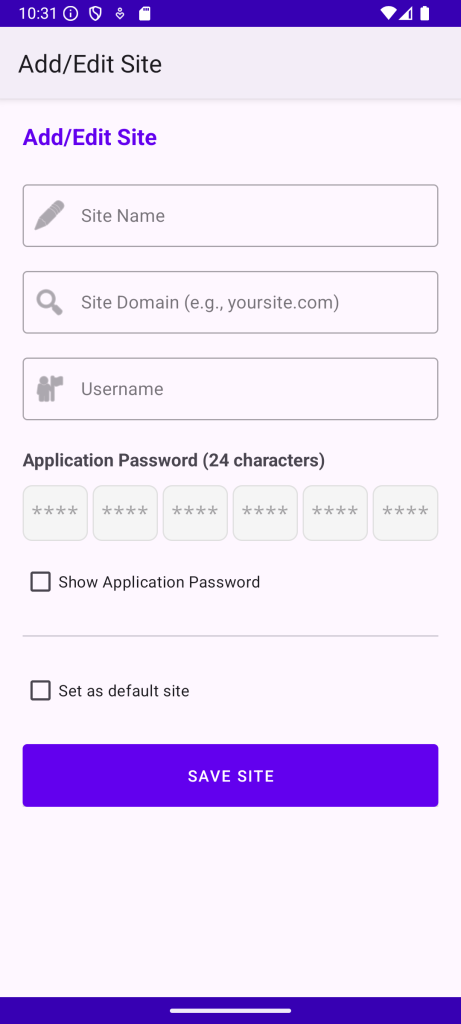
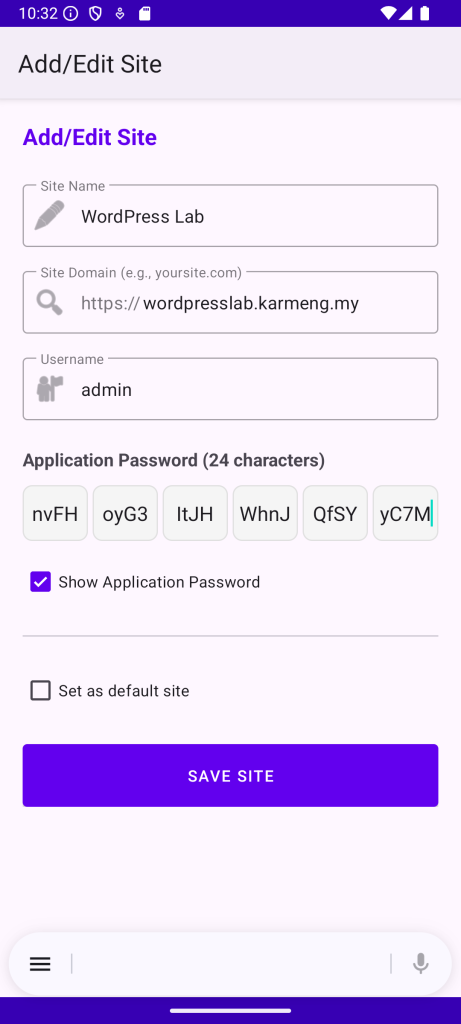
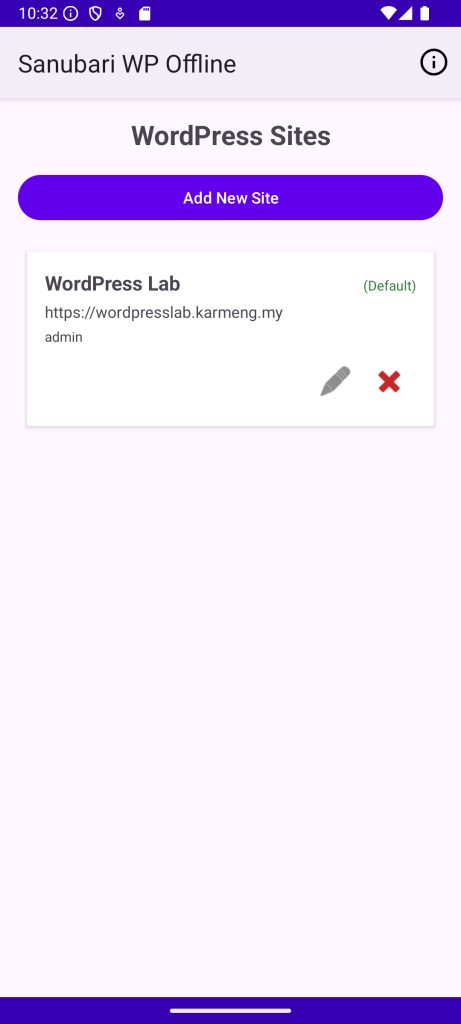
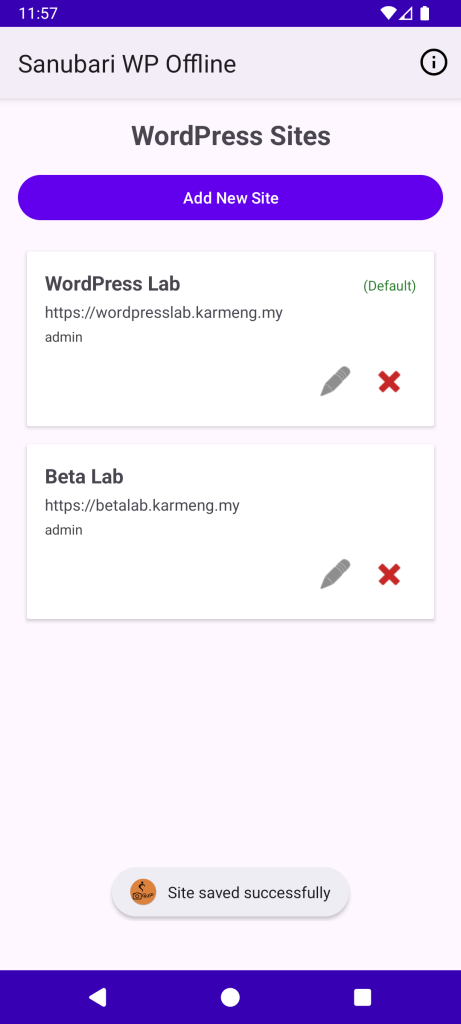
First time starting up the app will require adding of WordPress site.
Adding WordPress Site

By Clicking on the Add New Site, make sure that the Application Password and Username is prepared. User that has role as administrator and editor will be able to create Category. Author has no ability to create new category, but has ability to create tag.
Adding Picture Post
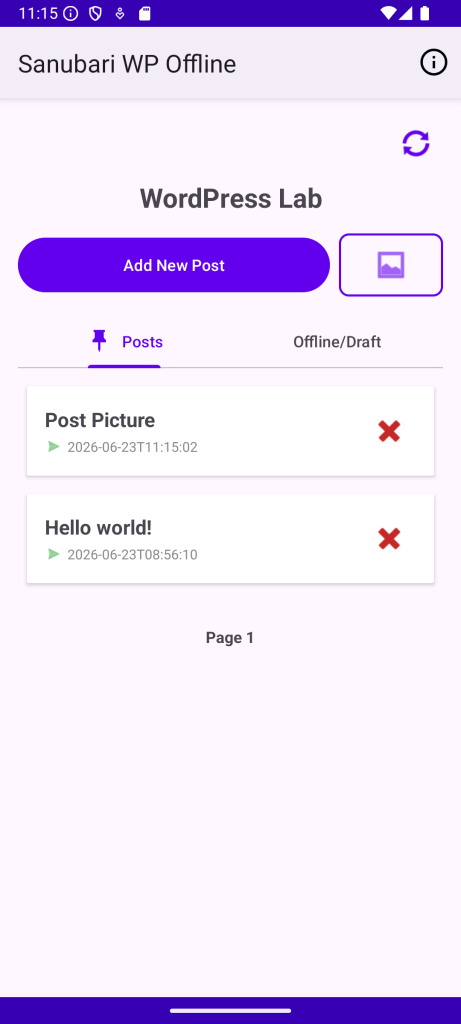
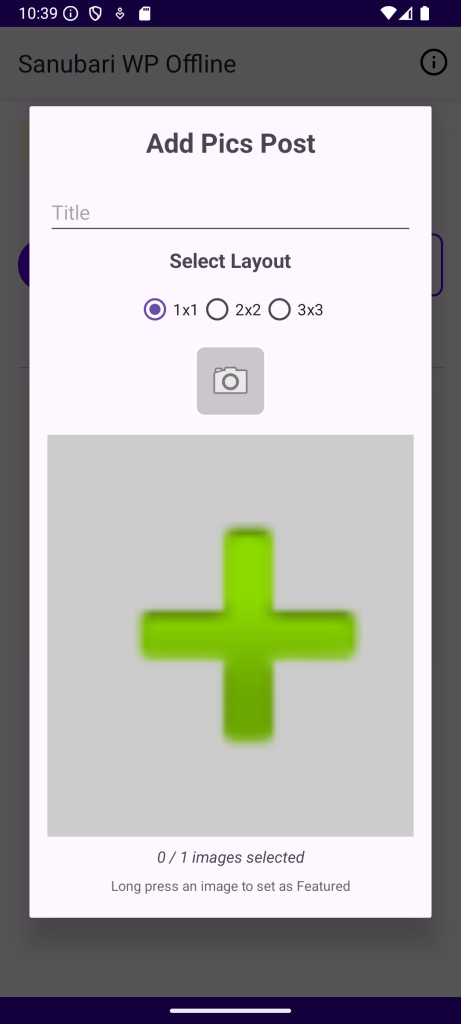
You may select 1 or 2 by 2 or 3 by 3 picture post.
Click on the camera icon to activate feature to take picture.
Upon taking picture you may review, crop, rotate the taken picture.
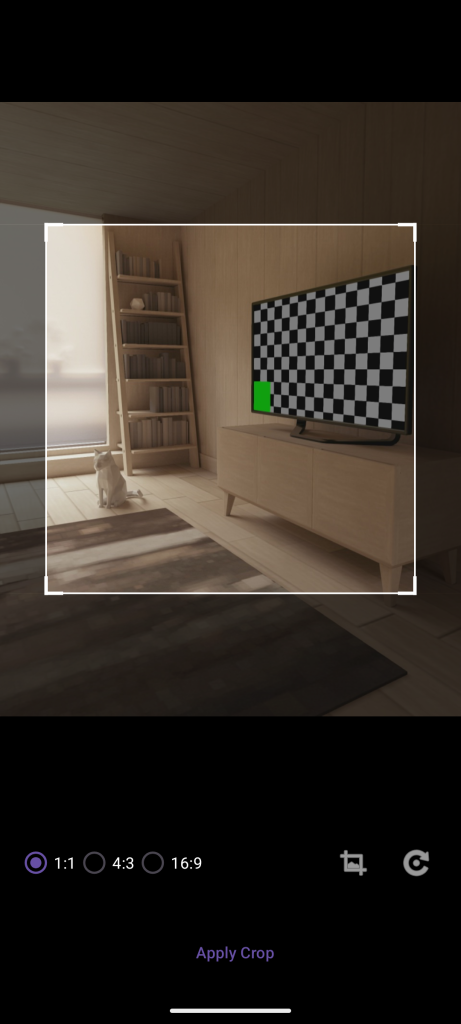
Once you are statistfy by the composition, click on Apply Crop.
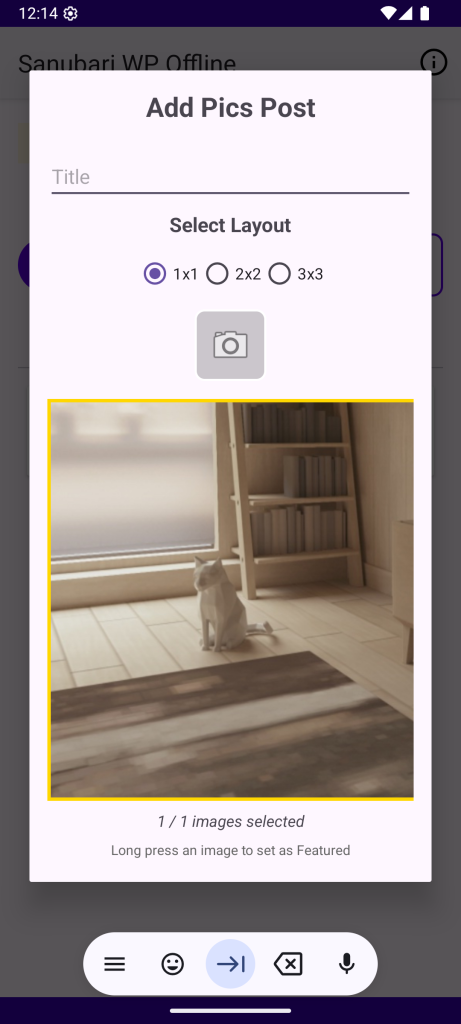
If you are taking 2 by 2 or 3 by 3, continue to take the picture.
By default, the featured picture of the post is the first picture. If there is desire to change the feature picture, tap and hold your preferred picture to be made as featured picture. Featured picture is highlighted by a thin yellow border.
Save as offline
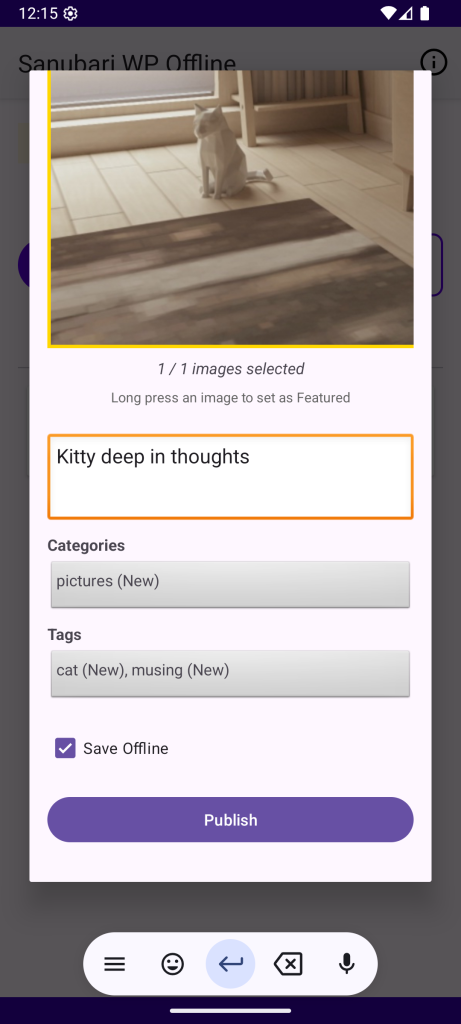
Both normal post and picture post before Publish, make sure the save offline checkbox is selected.
Adding new taxanomy
Tap either the category or tag
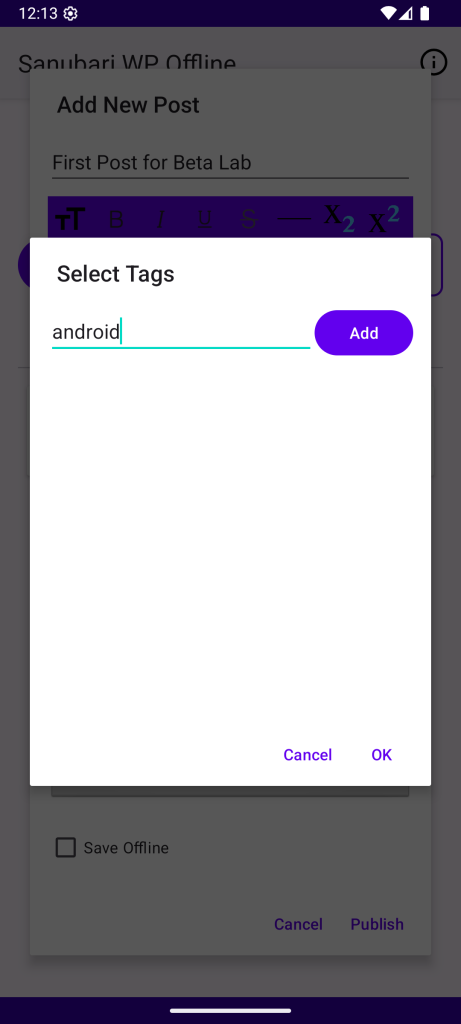
The search bar, offer both search as well as create new taxanomy if text entered does not exist.
Publish offline Post
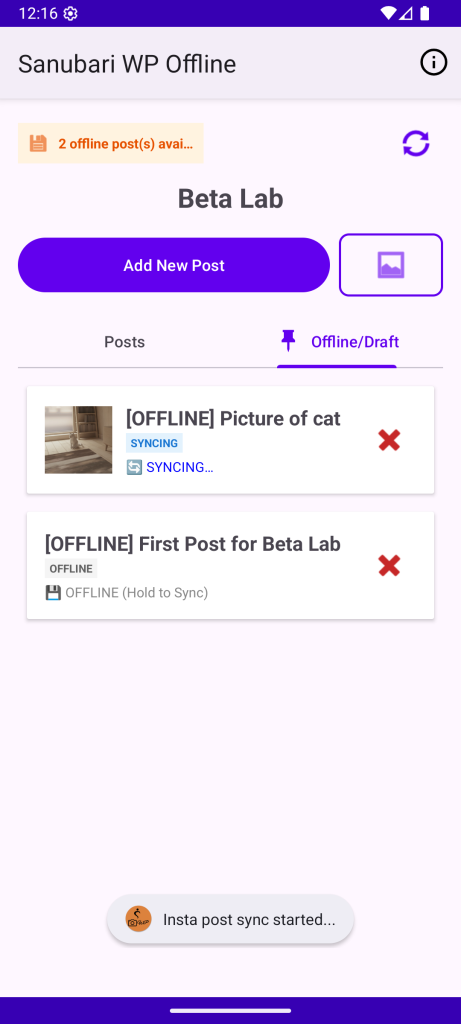
To publish the offline post, long hold tap on the post that is ready to be published.