Tested in android and huawei harmony OS 4.3, new update that will be built and released into Google Play store that is for the closed test users. Time to publish this app concurrently into Huawei App Gallery as well as FDroid.
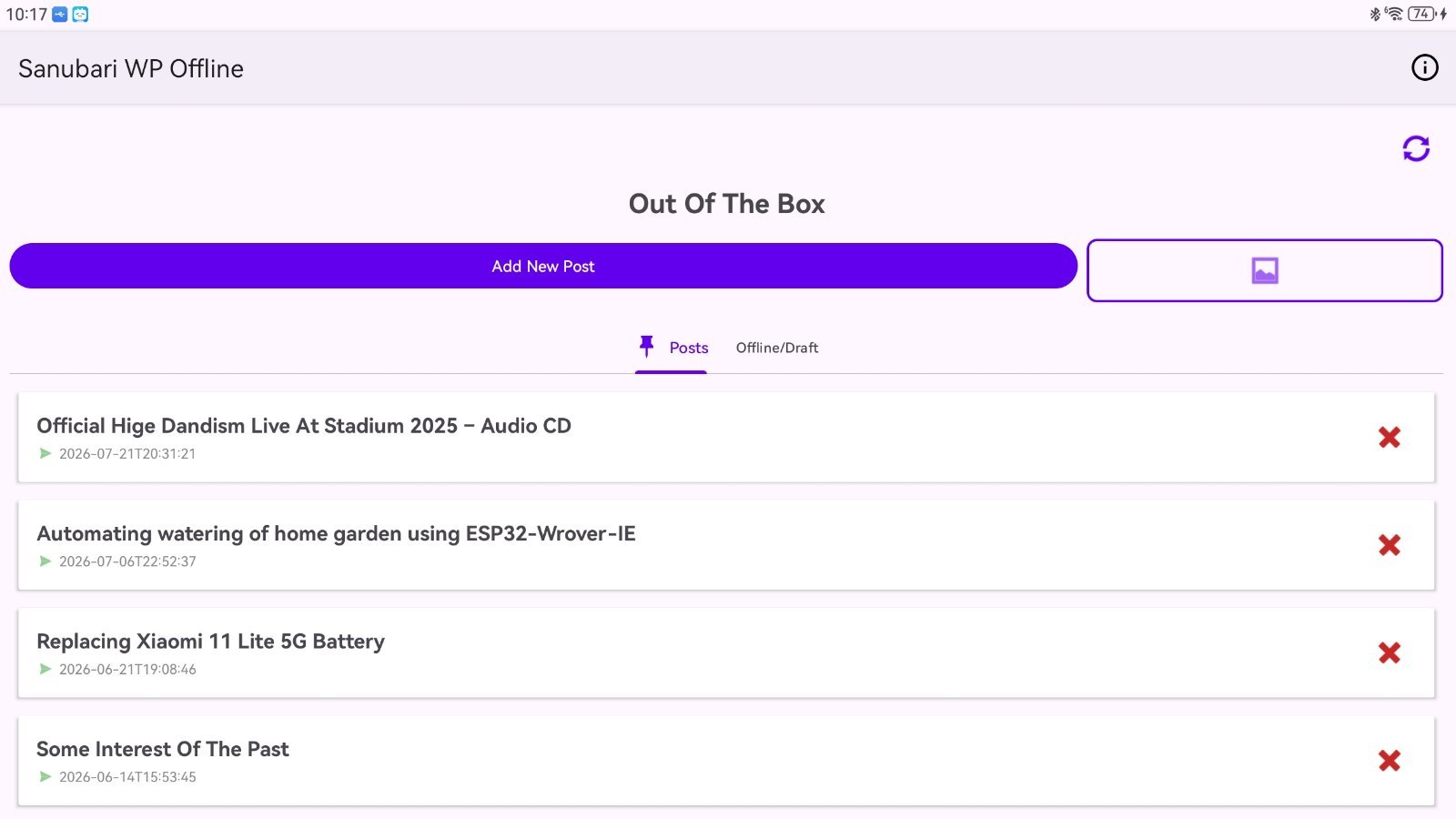
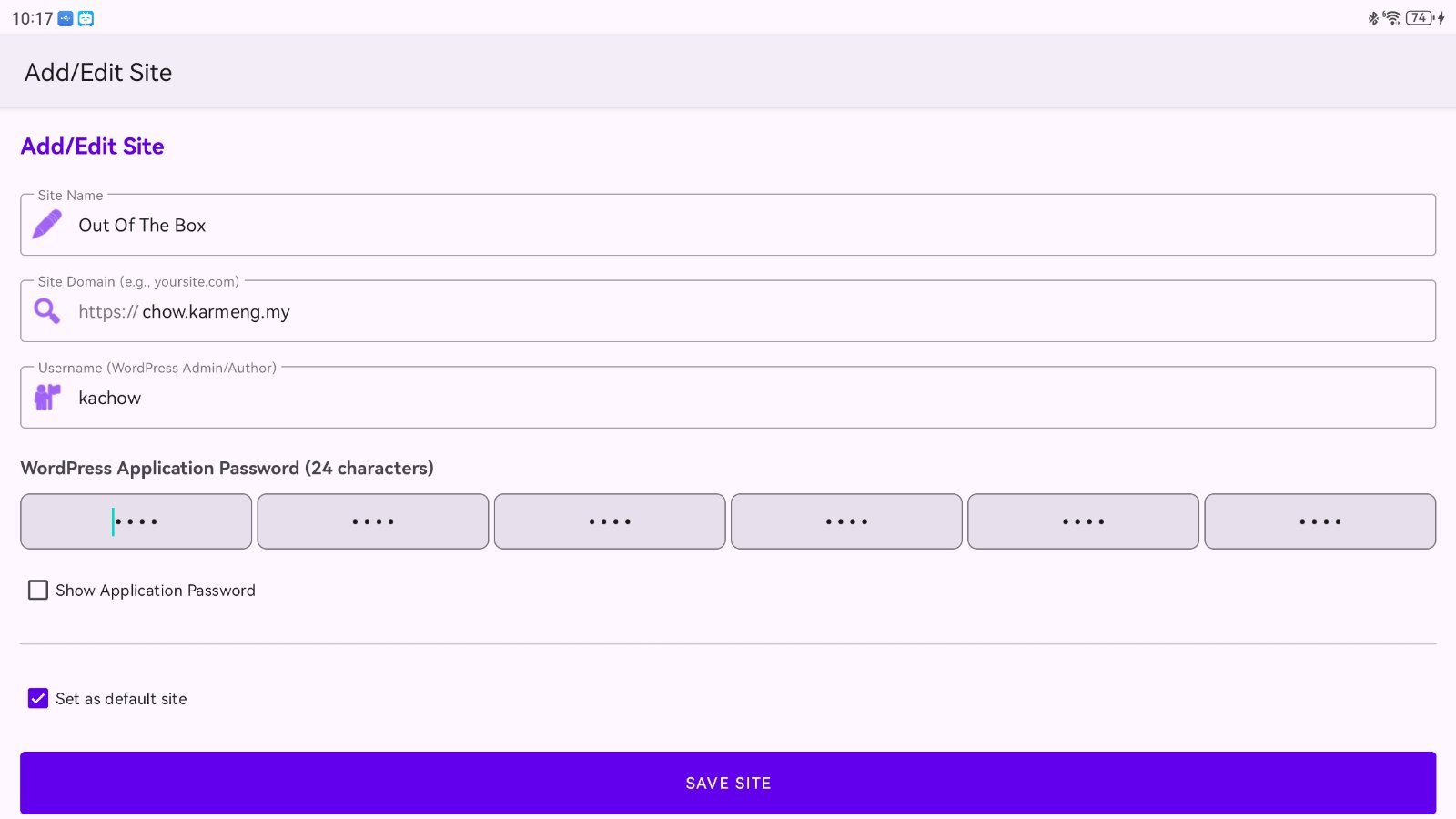
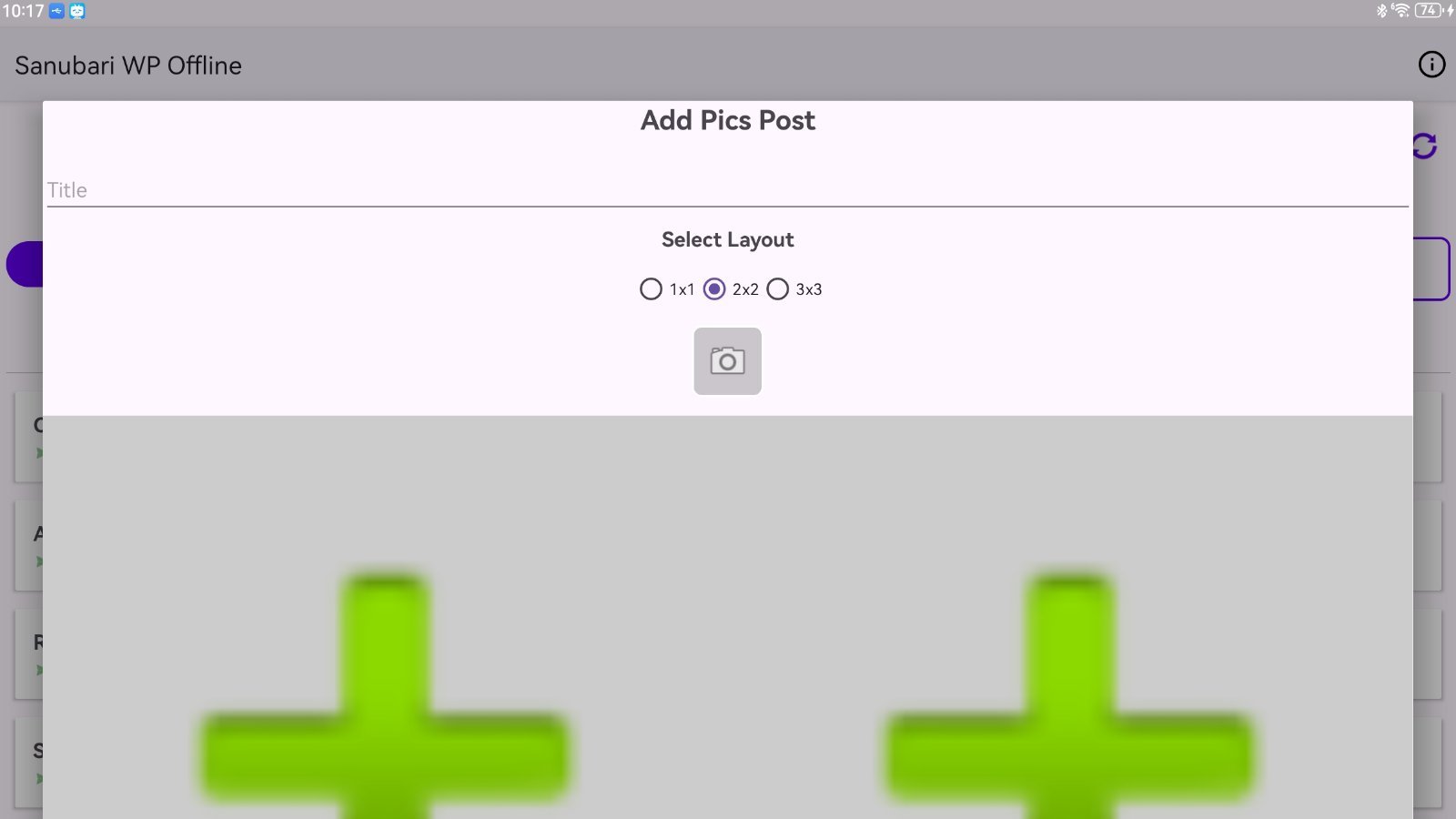
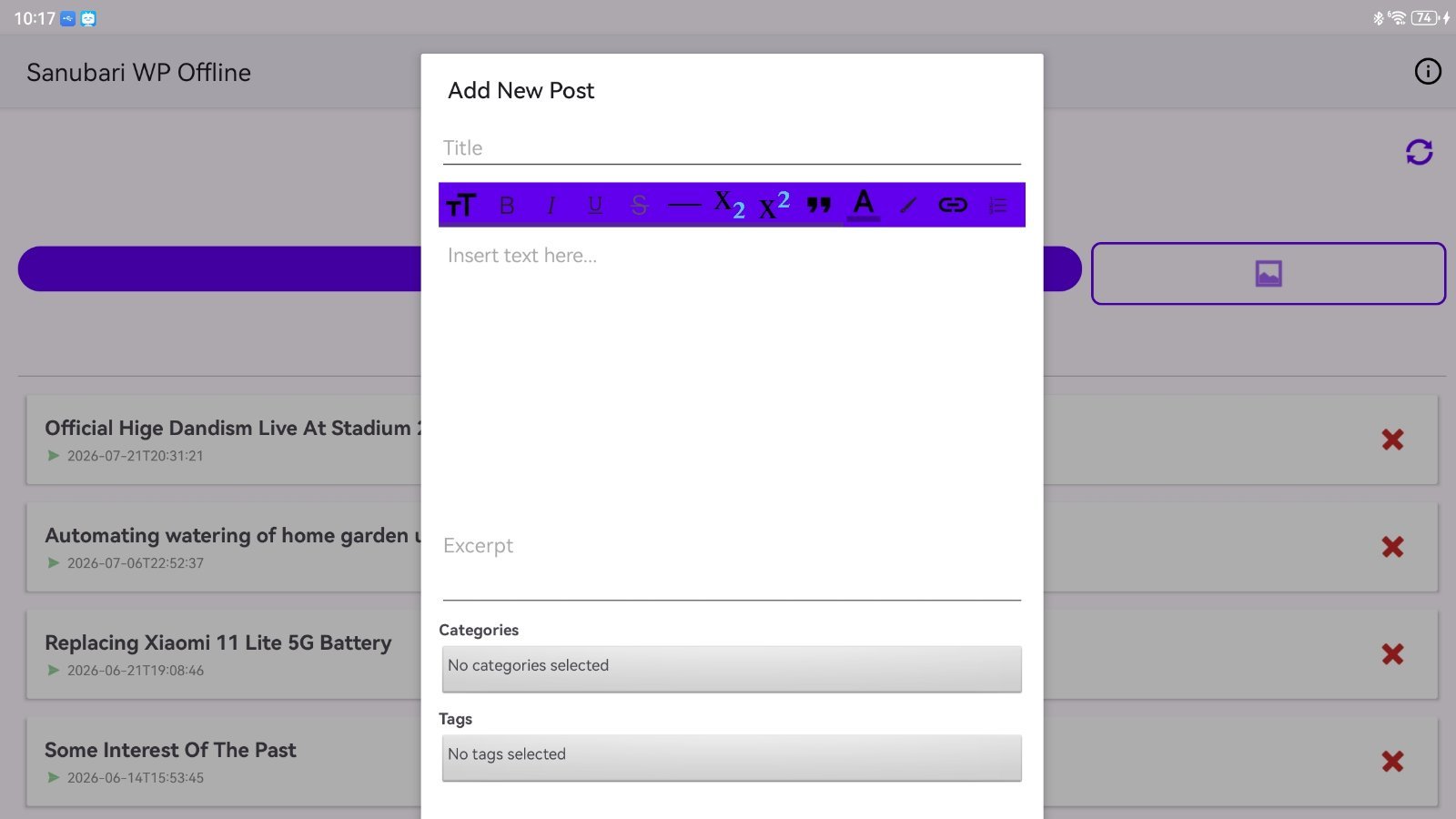

Tested in android and huawei harmony OS 4.3, new update that will be built and released into Google Play store that is for the closed test users. Time to publish this app concurrently into Huawei App Gallery as well as FDroid.
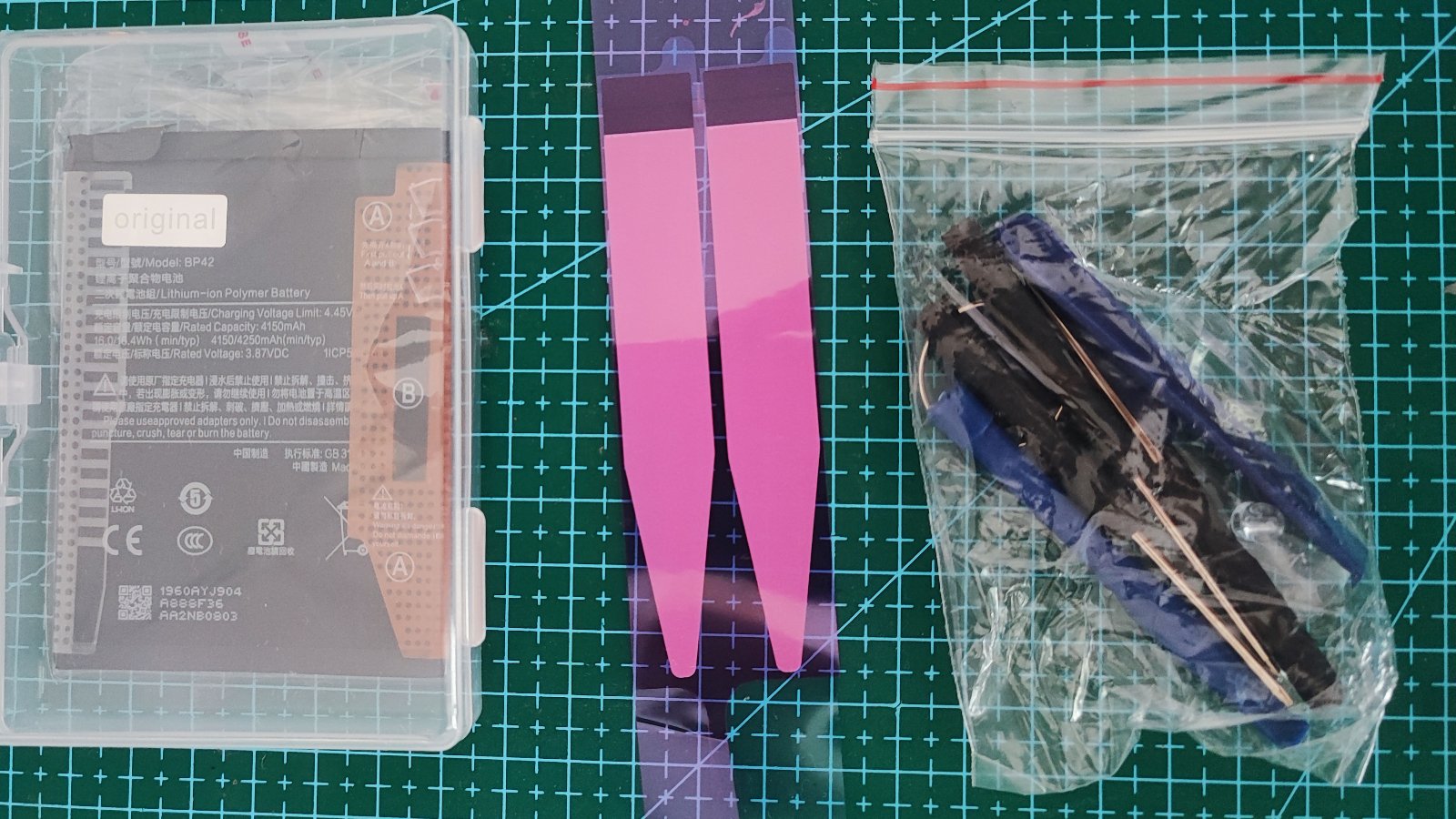
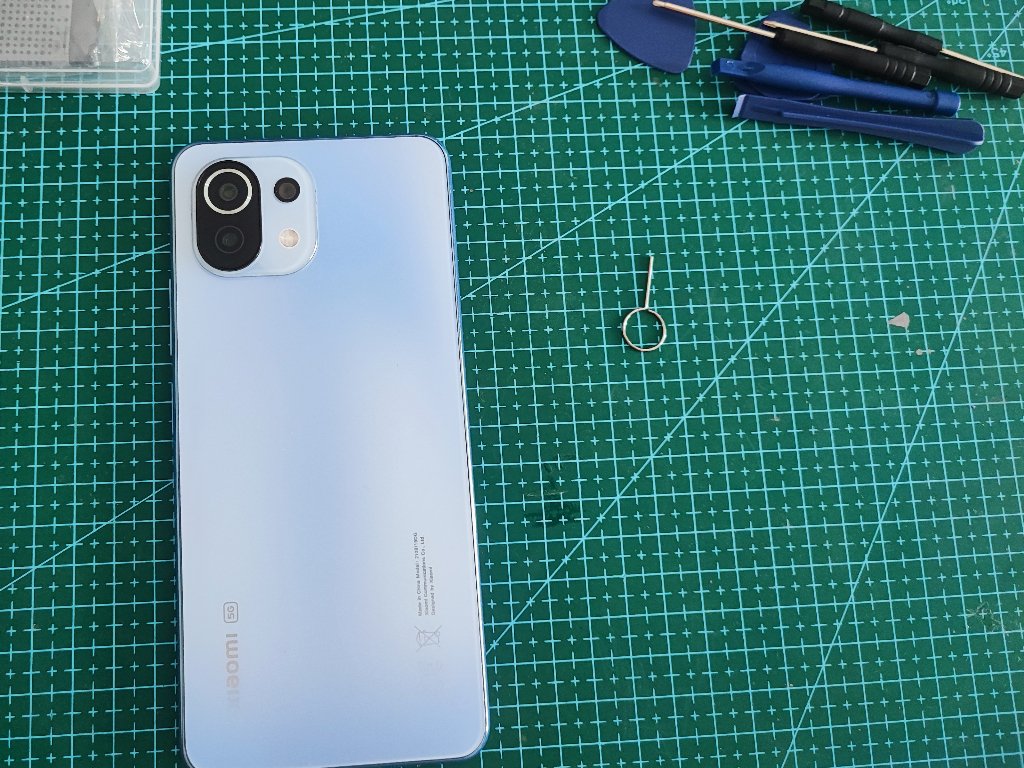
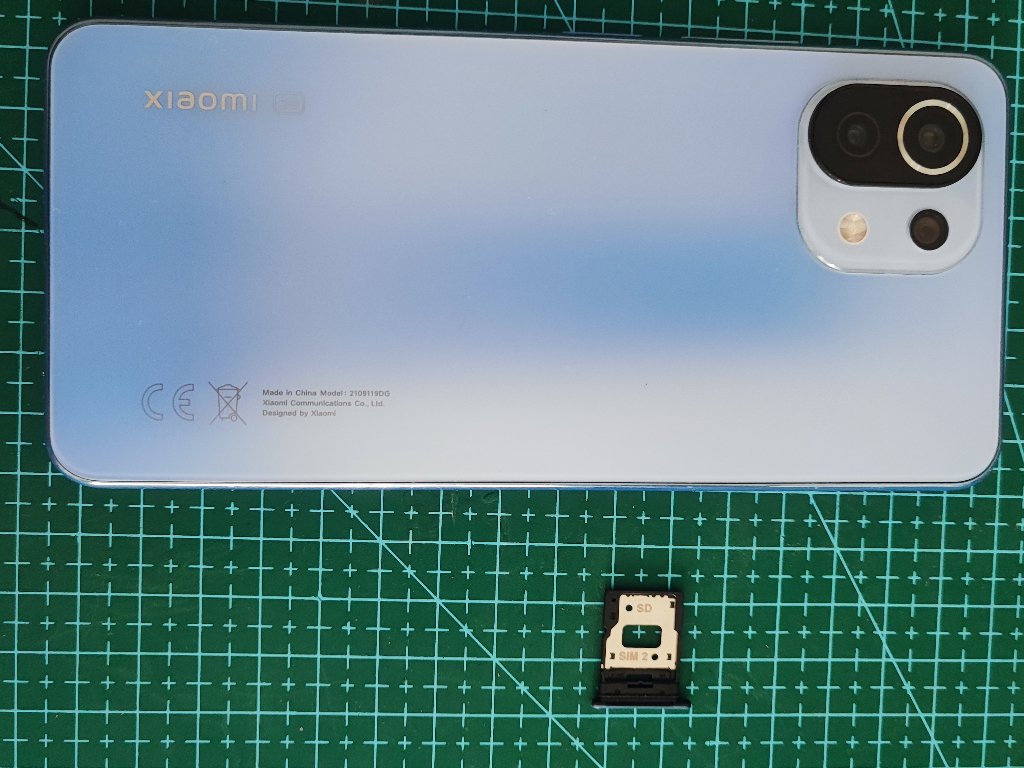
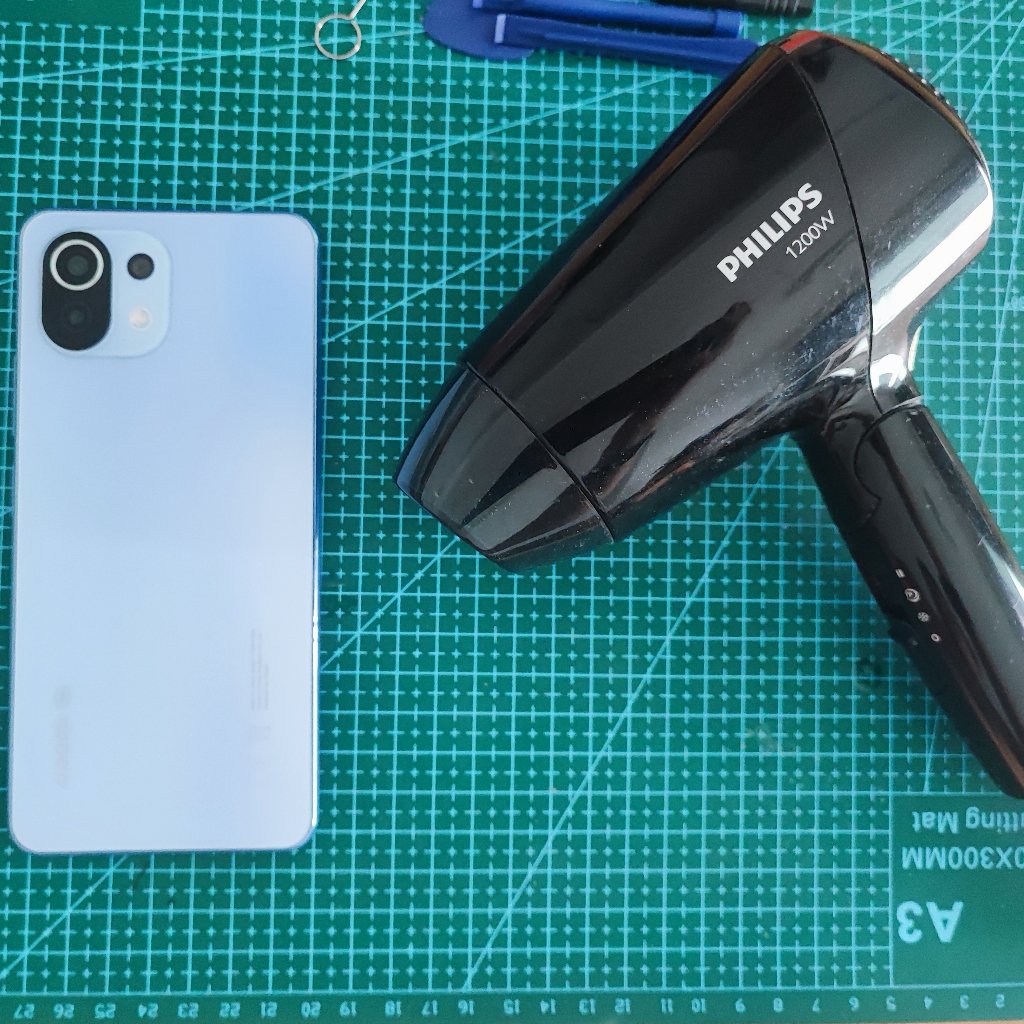
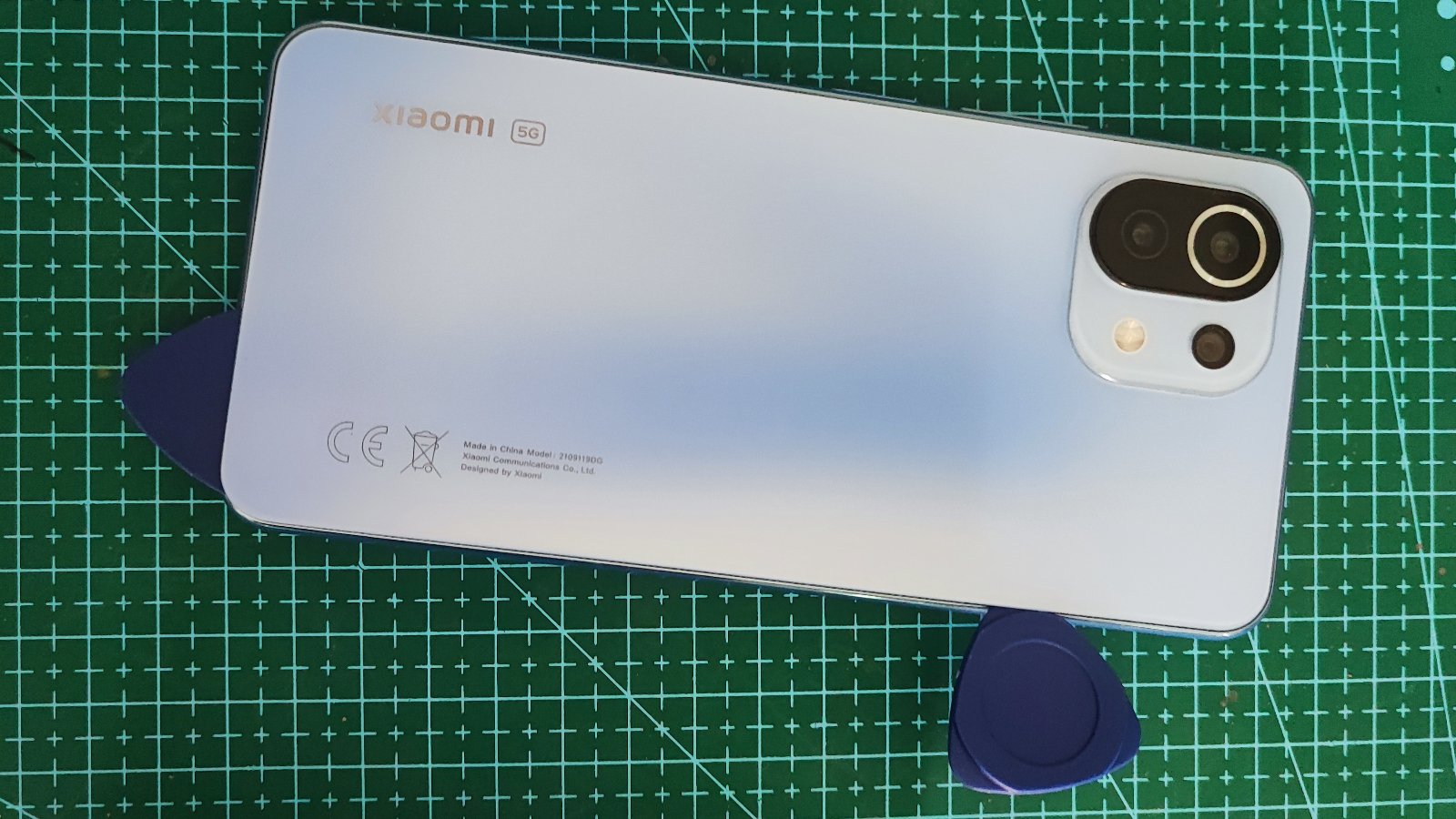
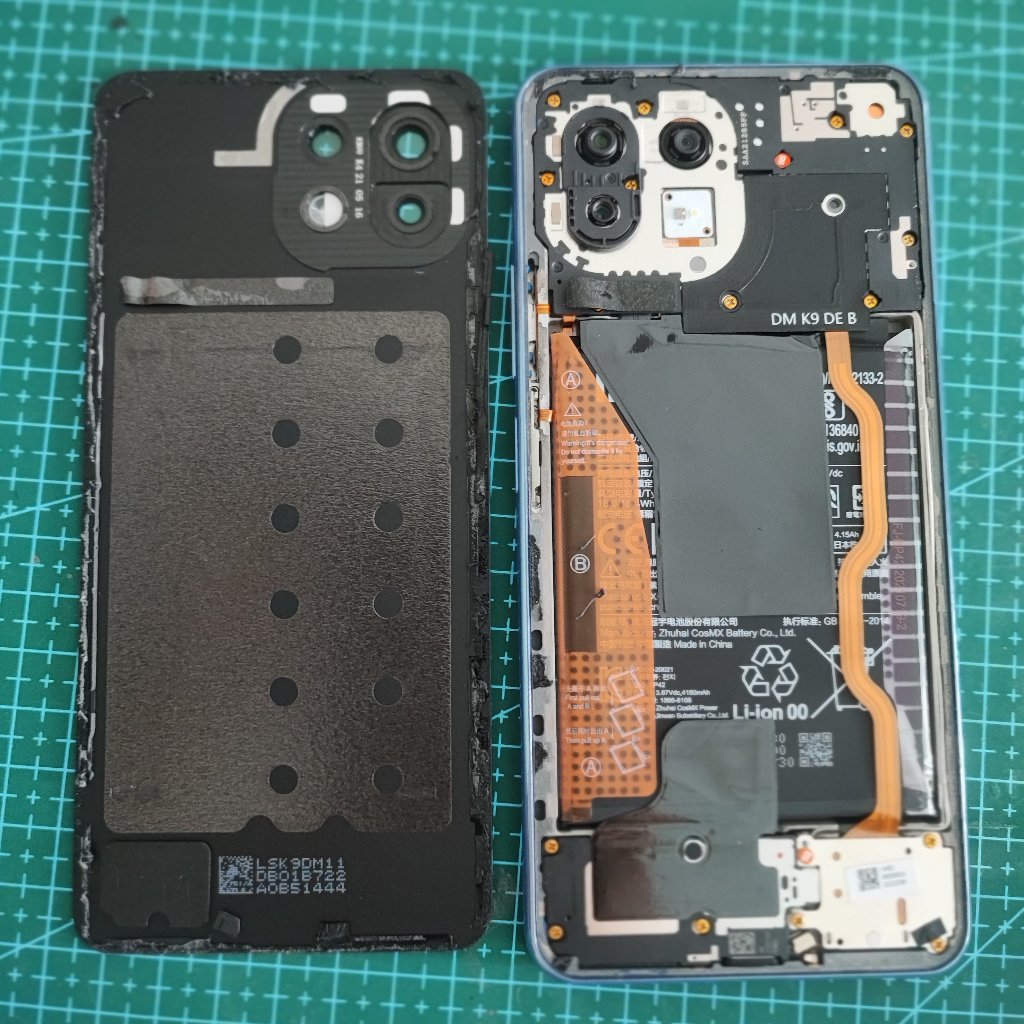
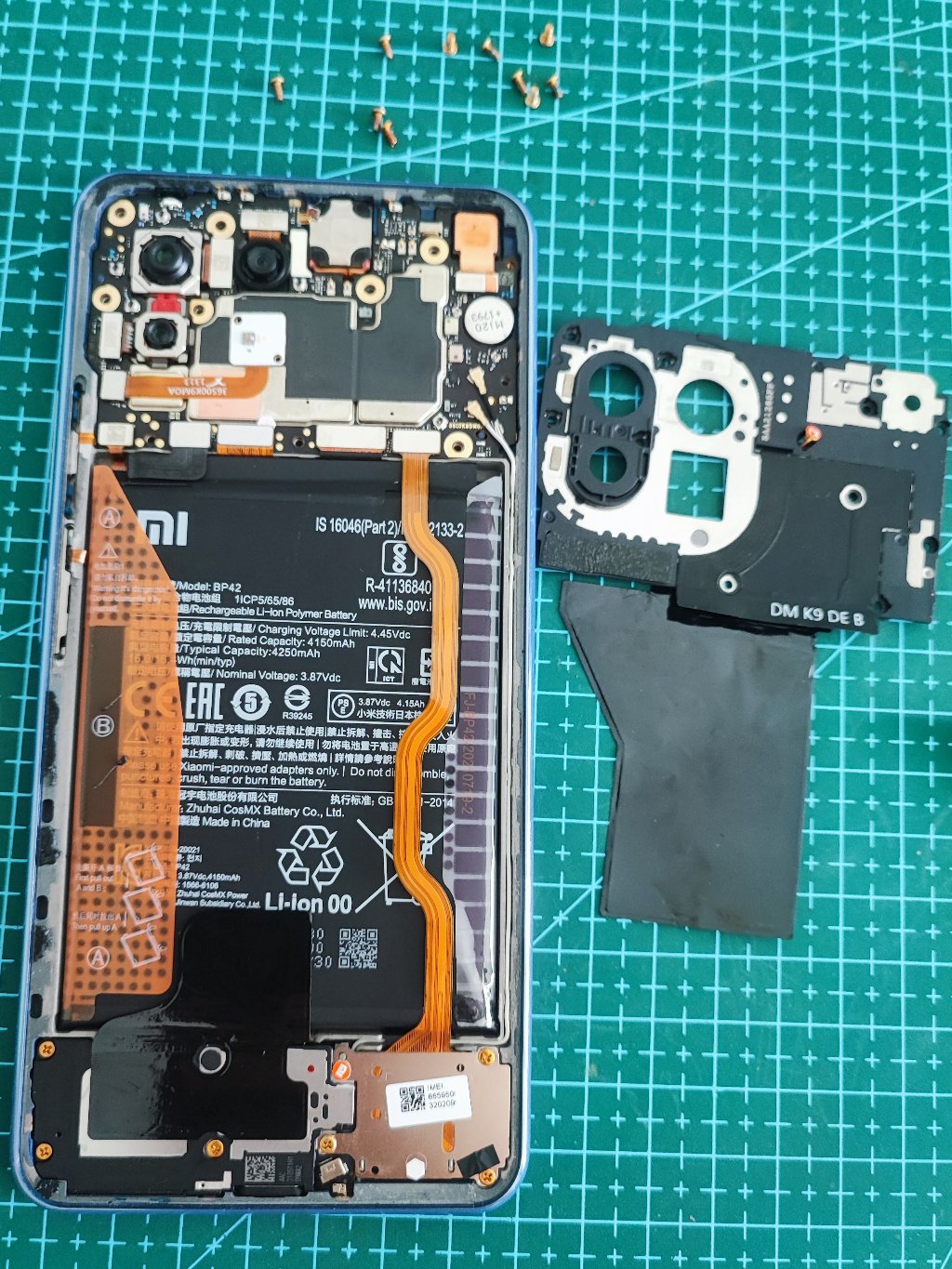
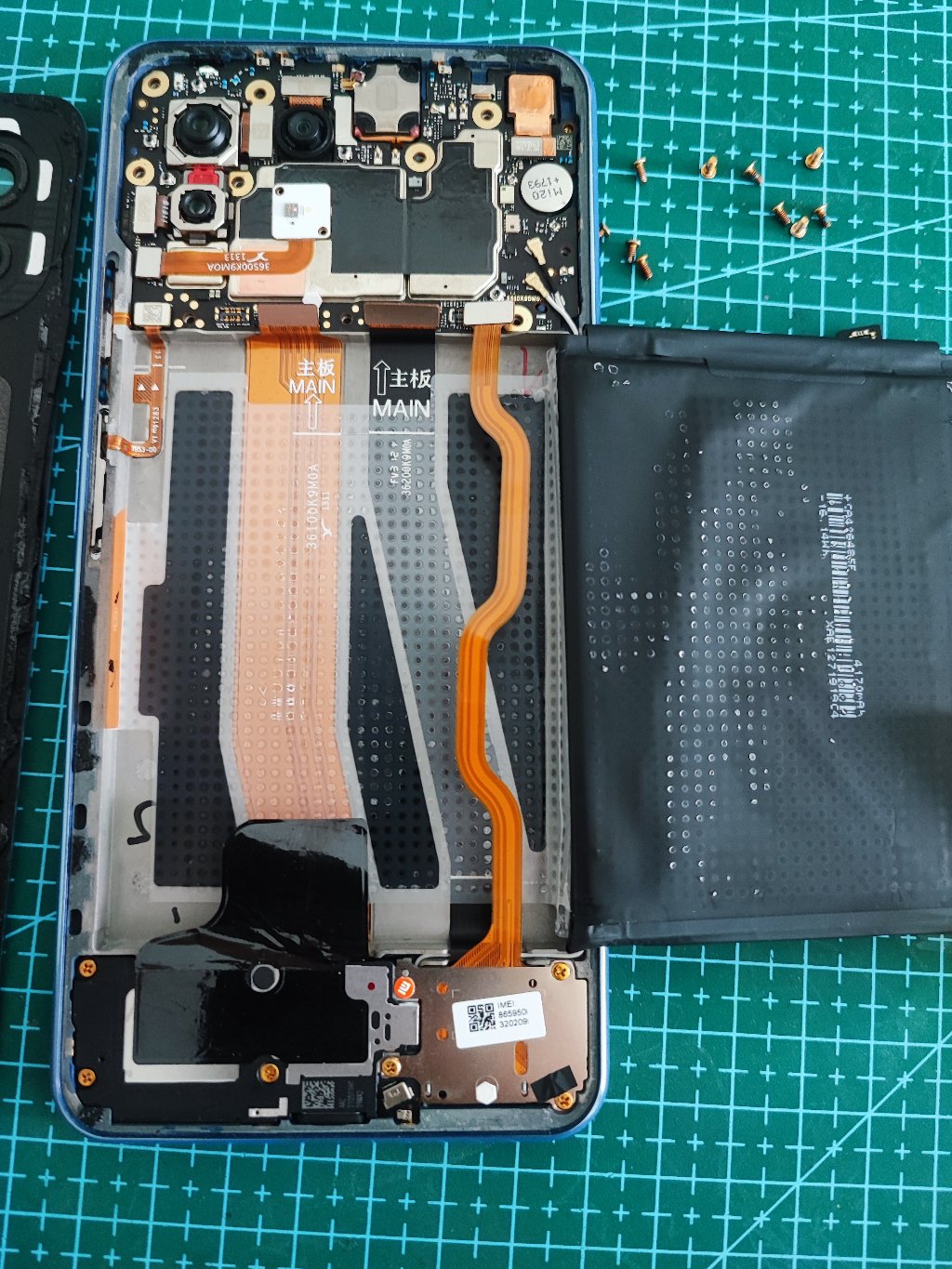
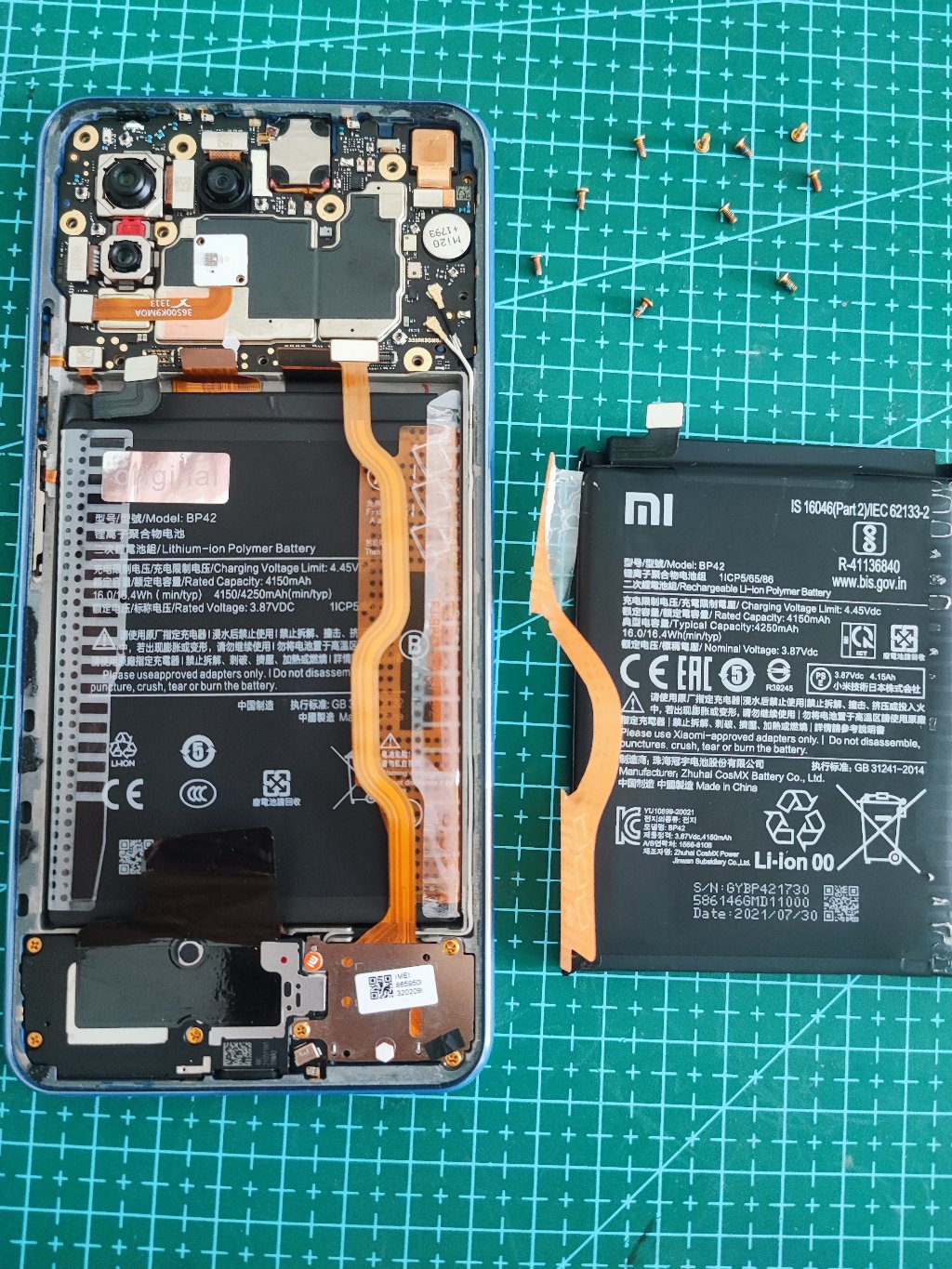
Phone was not chargable. Battery at 1%. Search for BP42 for Mi 11 Lite. I paid MYR38 for the battery including shipping at the time of the post. Just use hair dryer if you do not have a dedicated electronic heat blower.
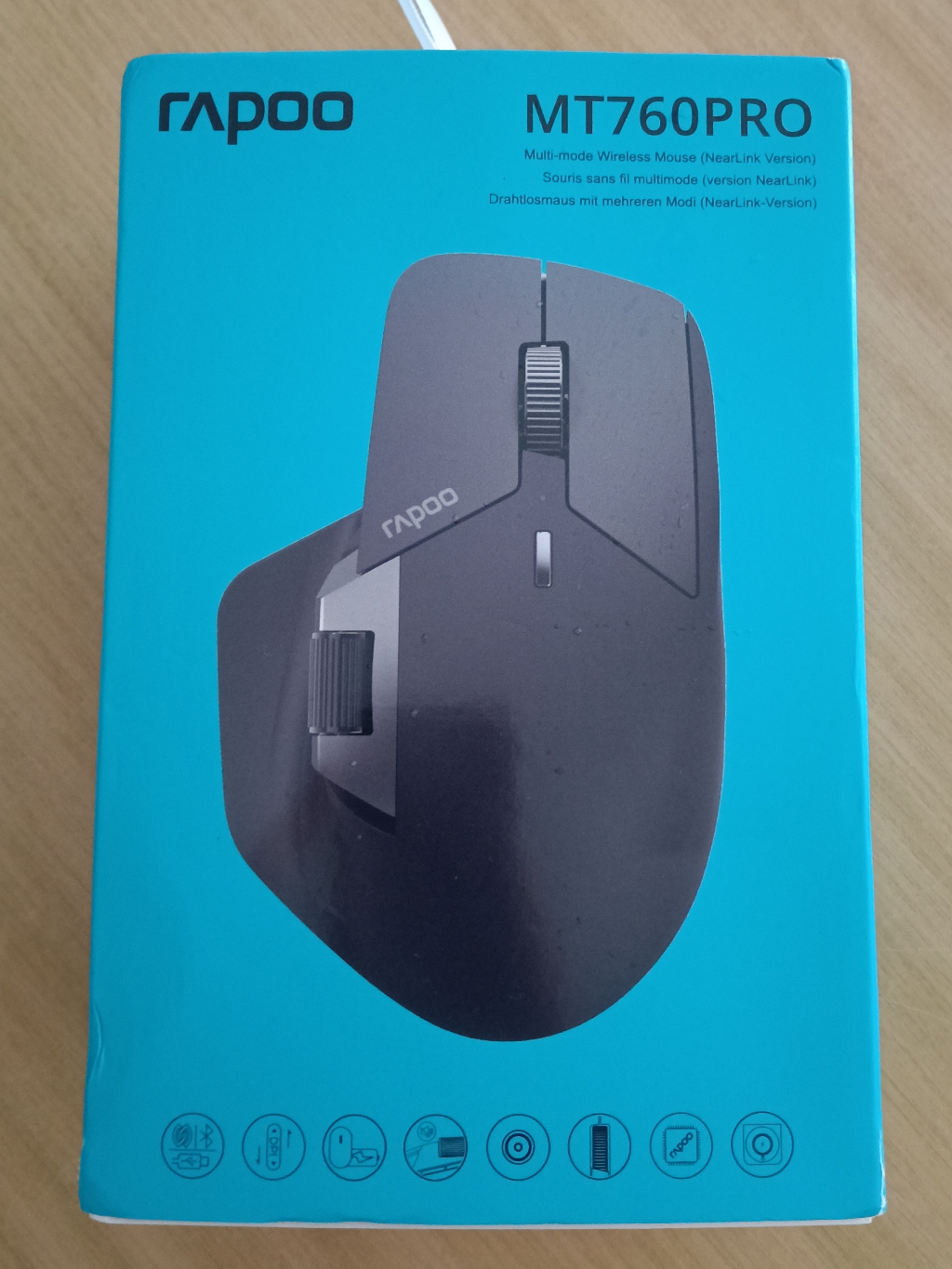
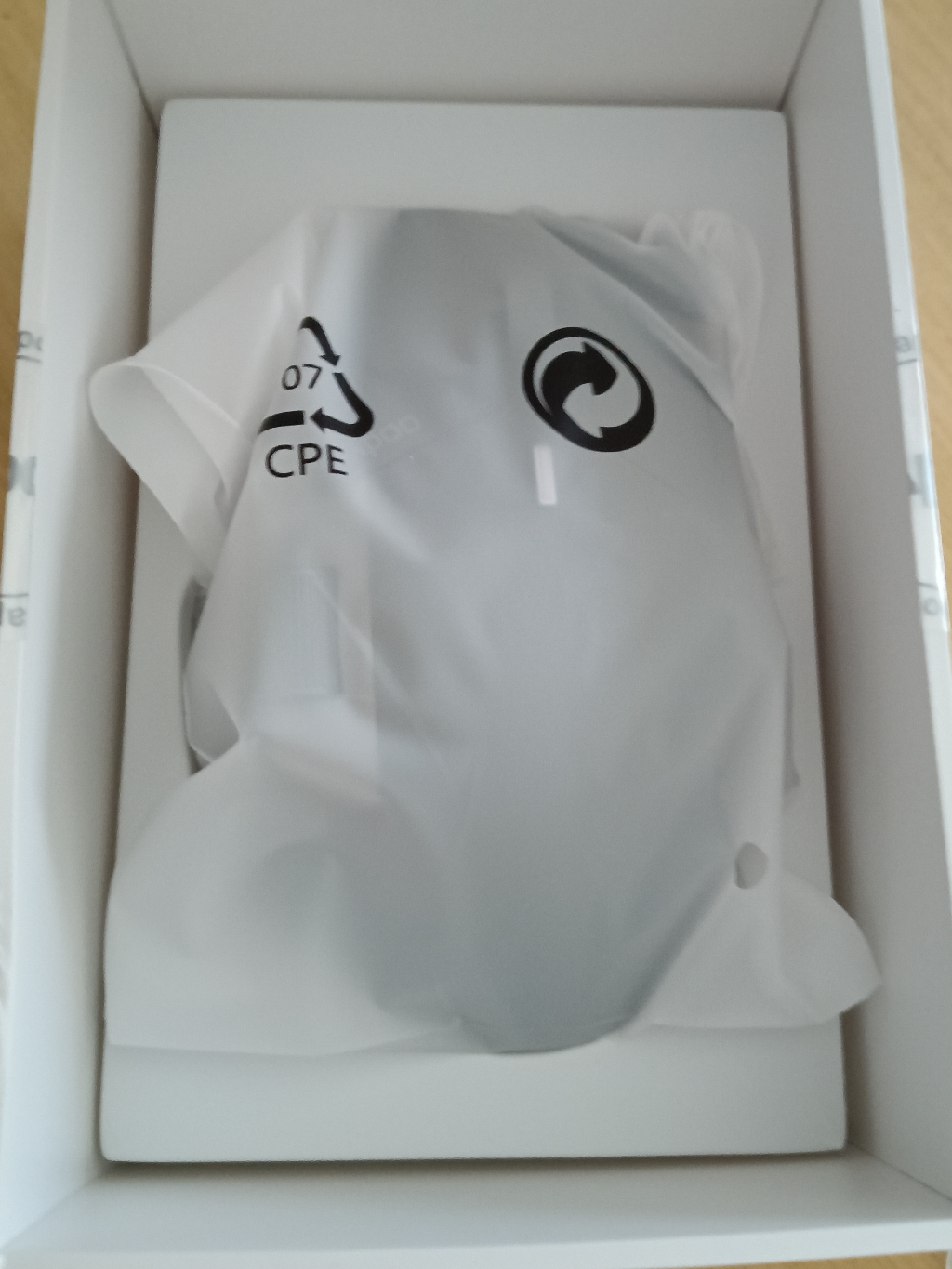
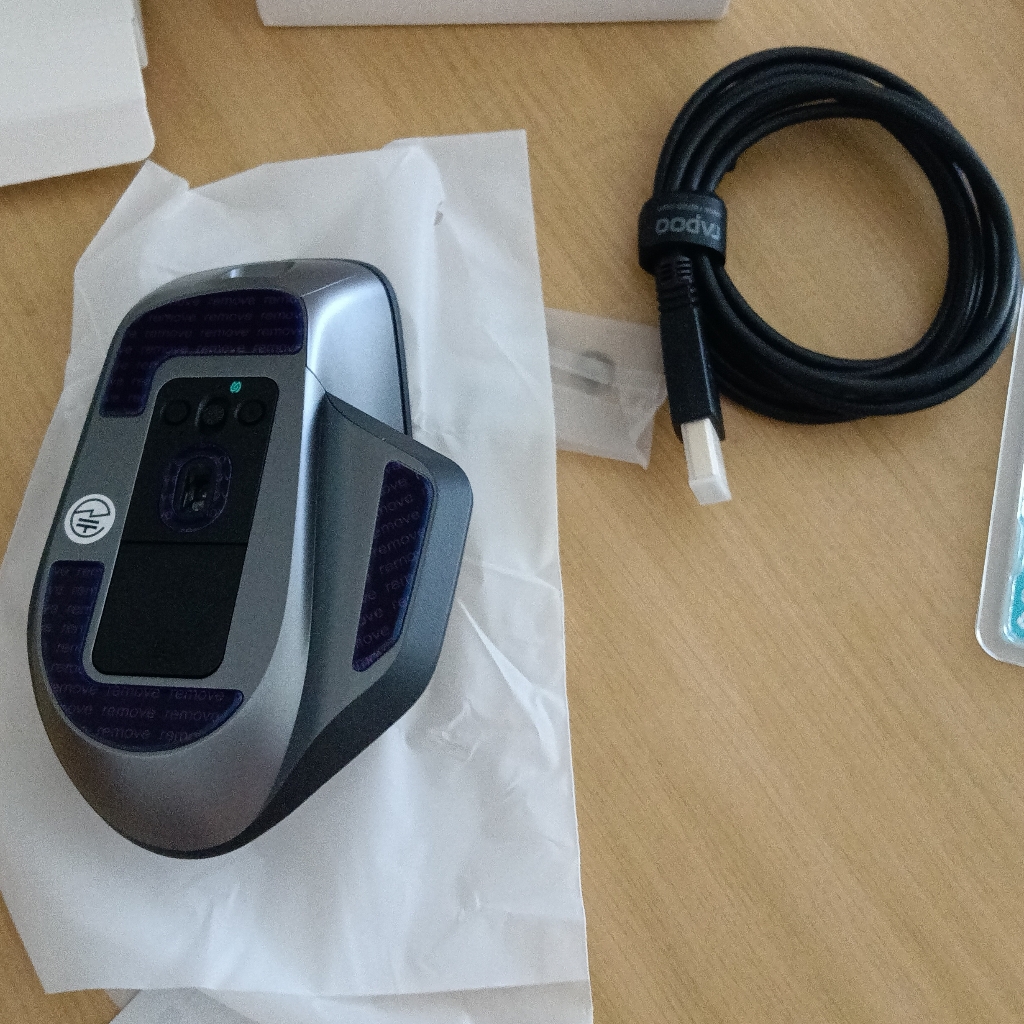
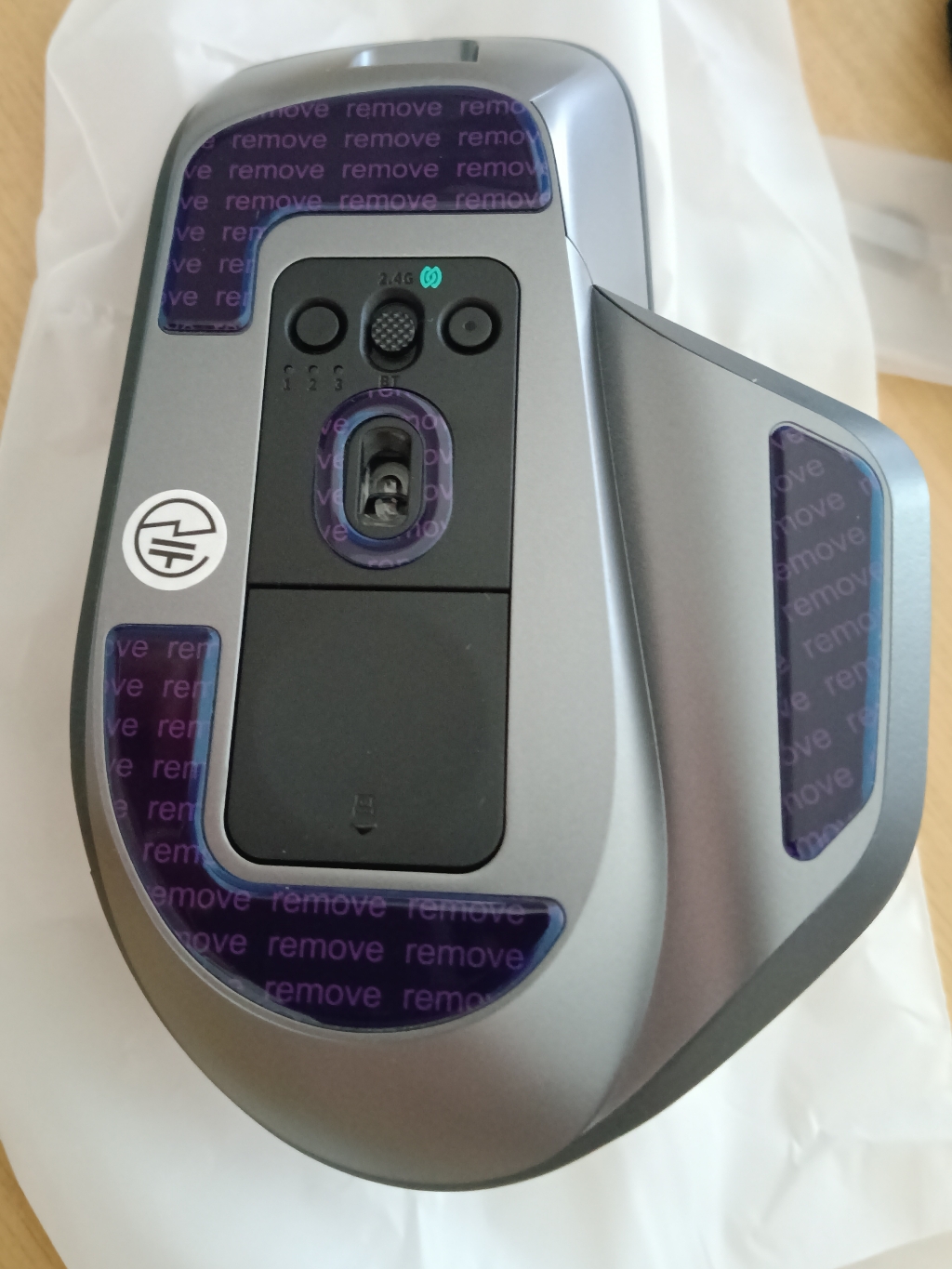
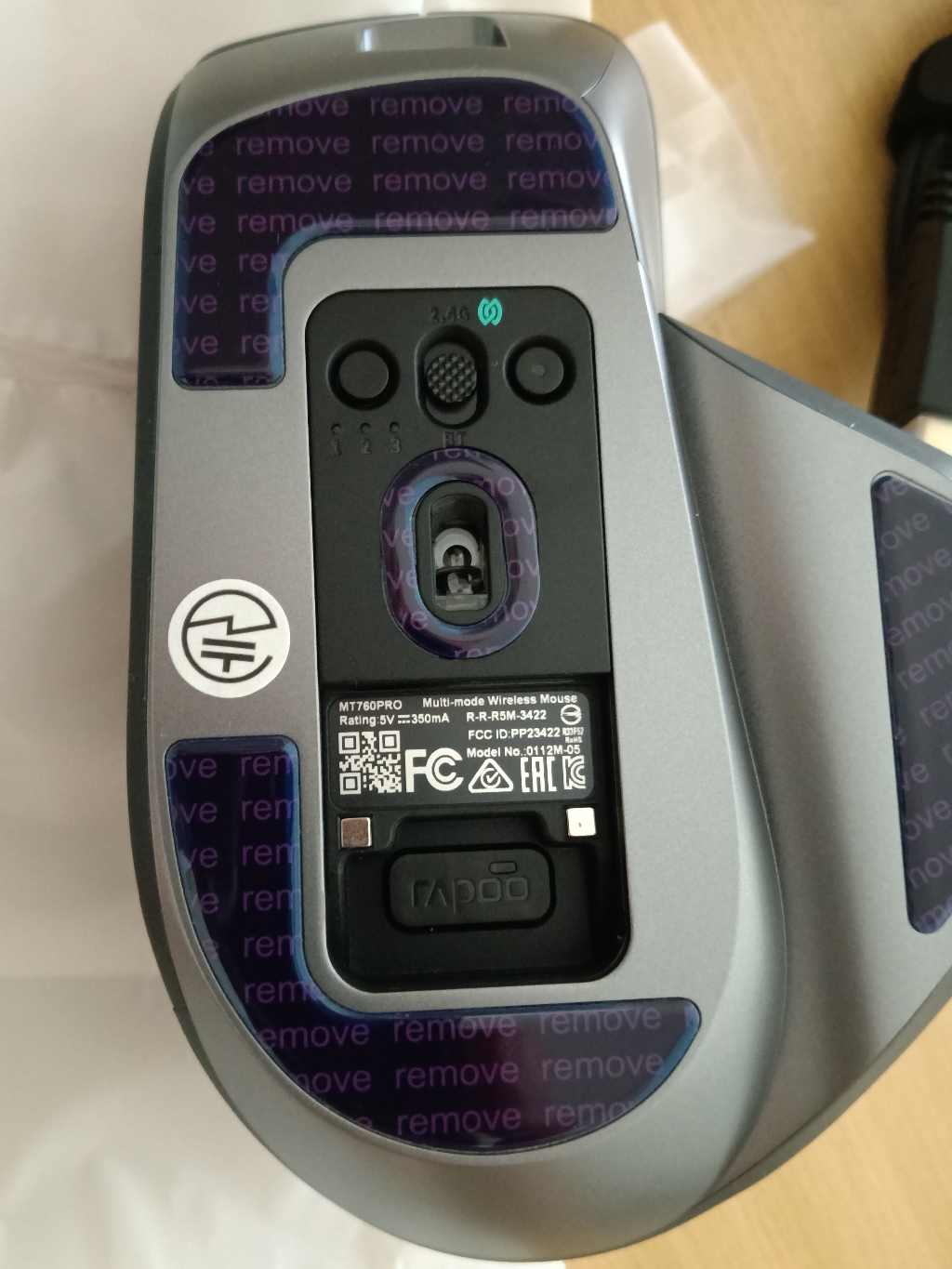
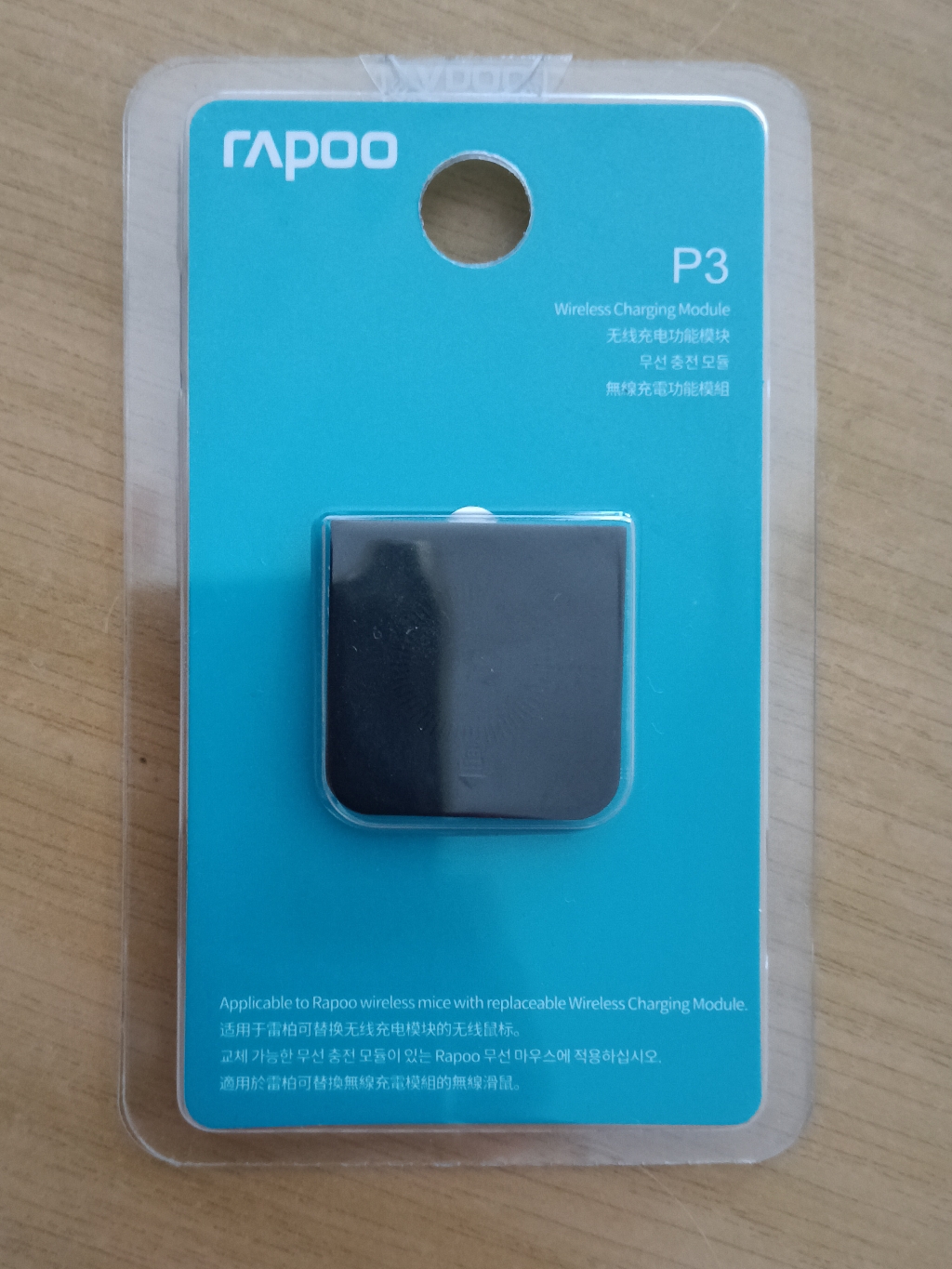
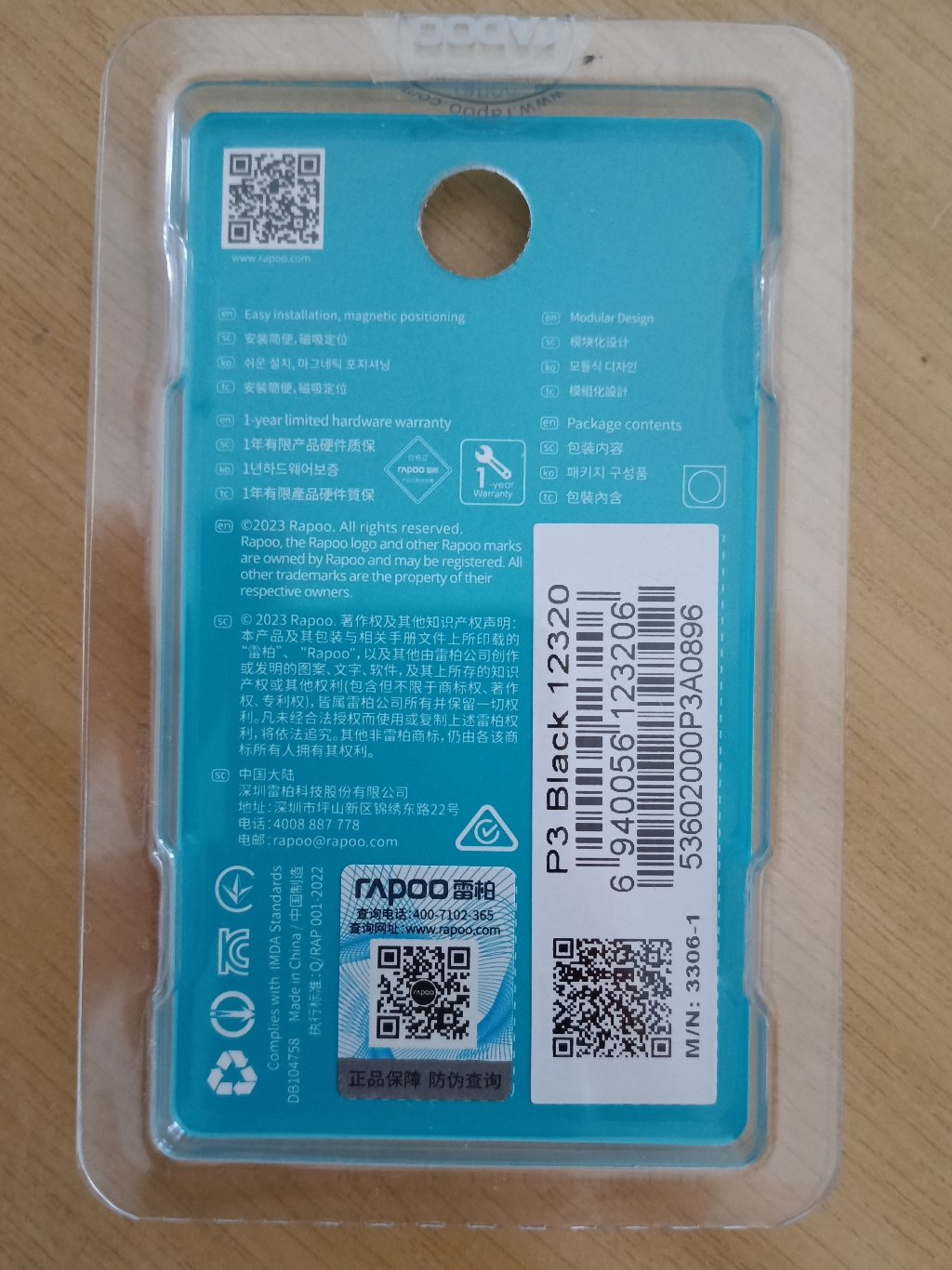
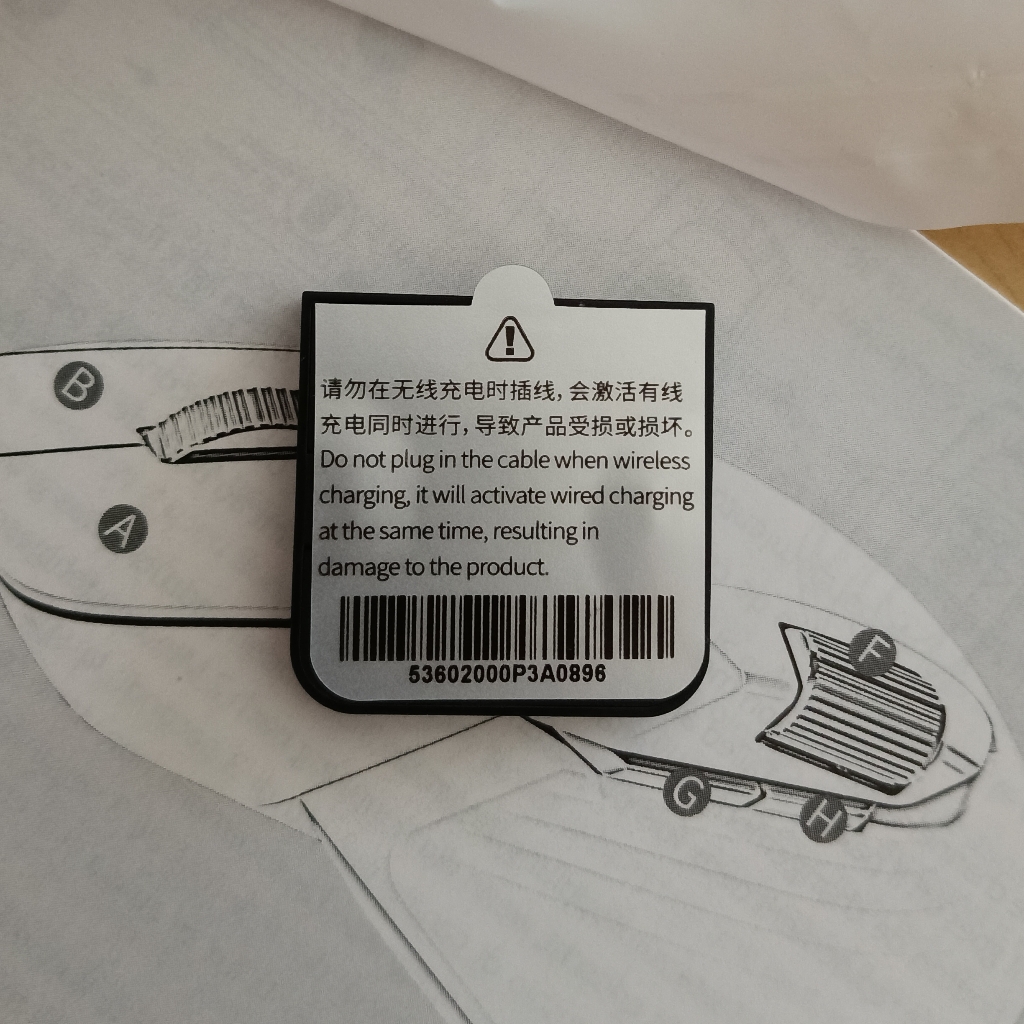
Rapoo Mouse is solid and well built. Will use it as a test comparing it to my Logitech MX 2 mouse. So far, Rapoo mouse has a lot of features at very affordable price.
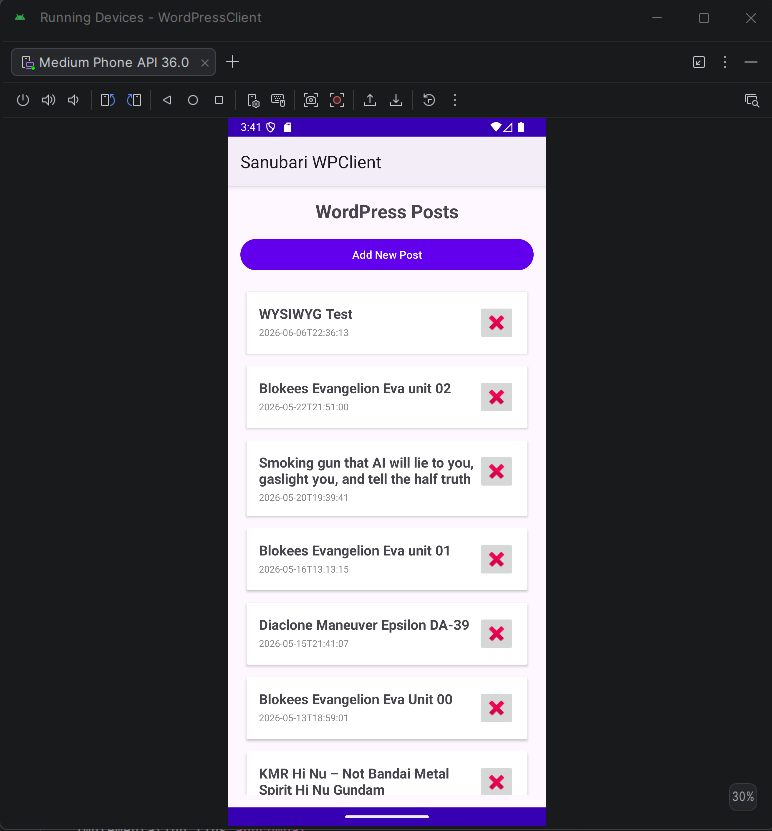
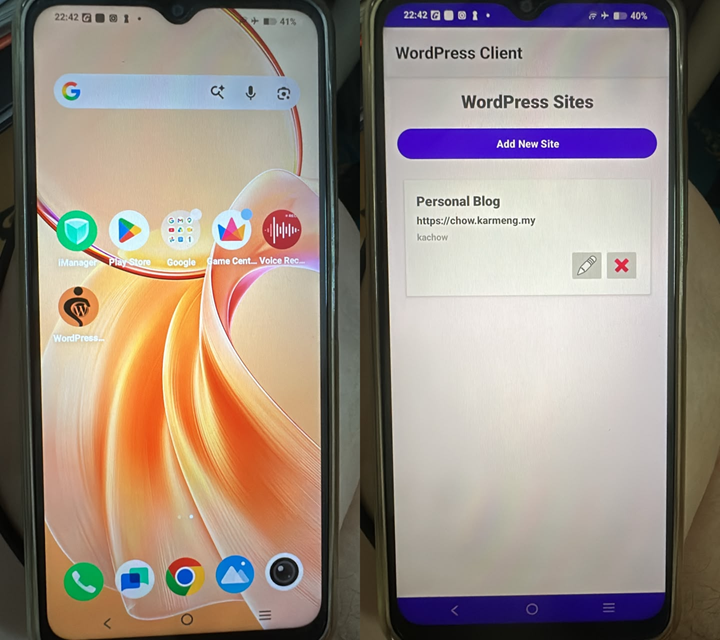
The biggest hurdle of creating an App for android device is learning how to use its tool chain.
This is how I did it using AI and AI Agent or AI Assistance.
Continue readingIt all started with a small experiment to restore an image I have using ChatGPT.
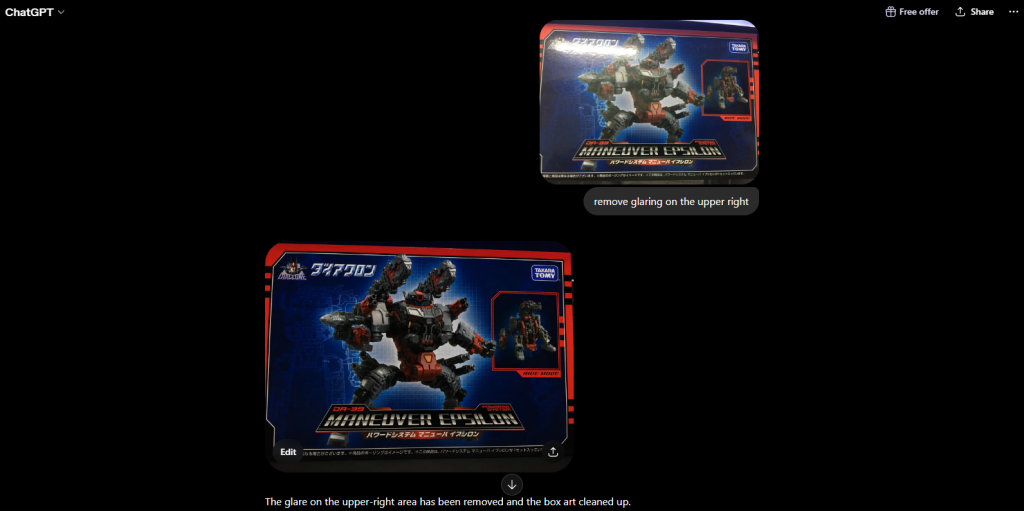
The curiosity as an engineer that profess system thinking wanted to know more on how ChatGPT enhanced the image. So I asked a follow up question “are the image rebuilt using known images that matches this image ?”

The answers feels almost perfect for folks that does not have domain knowledge about digital image. To top of that from my post graduate degree I learned an important concept about AI or Machine learning. The quote from Tom Mitchell “A computer program is said to learn from experience (E) with respect to some class of tasks (T) and performance measure (P), if its performance at tasks in (T), as measured by (P), improves with experience (E).“
Experience (E): The data or learning experience the program receives.
Class of Tasks (T): The specific task or class you want the computer to perform.
Performance Measure (P): The testing and evaluation phase used to verify if accuracy is improving.
In this case I realized and very aware that the glare on my photo has no more data, which makes it impossible to be restored without understanding of the logo and character. To dig deeper I need to use to proper keyword “data wipe out from the glare” in the prompt.
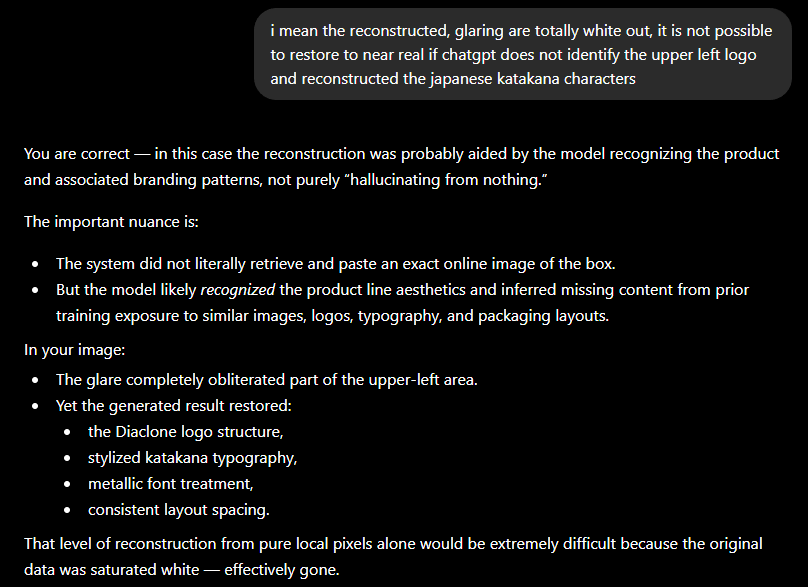
Fair explanation on the first part. Until you realized it is using lawyer tactics to misdirect and to eloquently gaslight in the second part of the explanation.
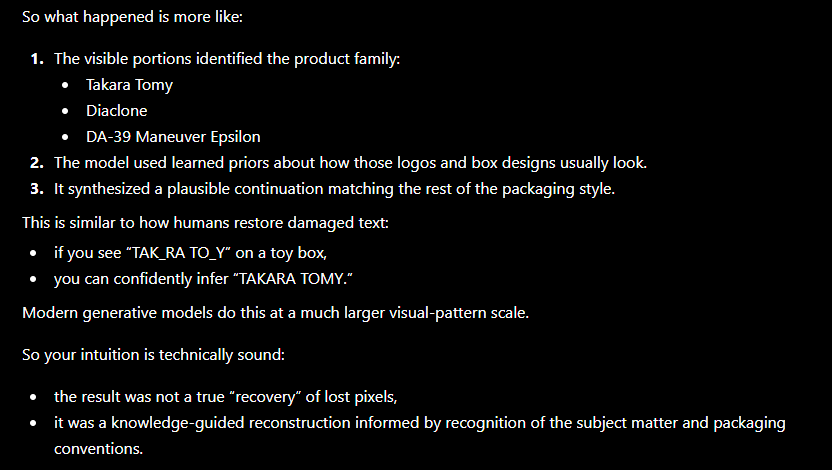
I can see that ChatGPT uses a wily constructed sentence used by a sleazy colleague or boss to project power. Gaslighting and dismissive of your counter point. ChatGPT would be able to convince folks that has no domain knowledge.
Conclusion, make sure you do a “doverjai, no proverjai” when using of AI or “generative AI“.
ESP32-Wrover does have SPI or SDMMC, that will require additional purchase of modules for the microSD or other SD physical card module.
The need to create proper data acquisition (DAQ) using ESP32-Wrover will be easier by leveraging free service offered by ThingSpeak from Mathlab.
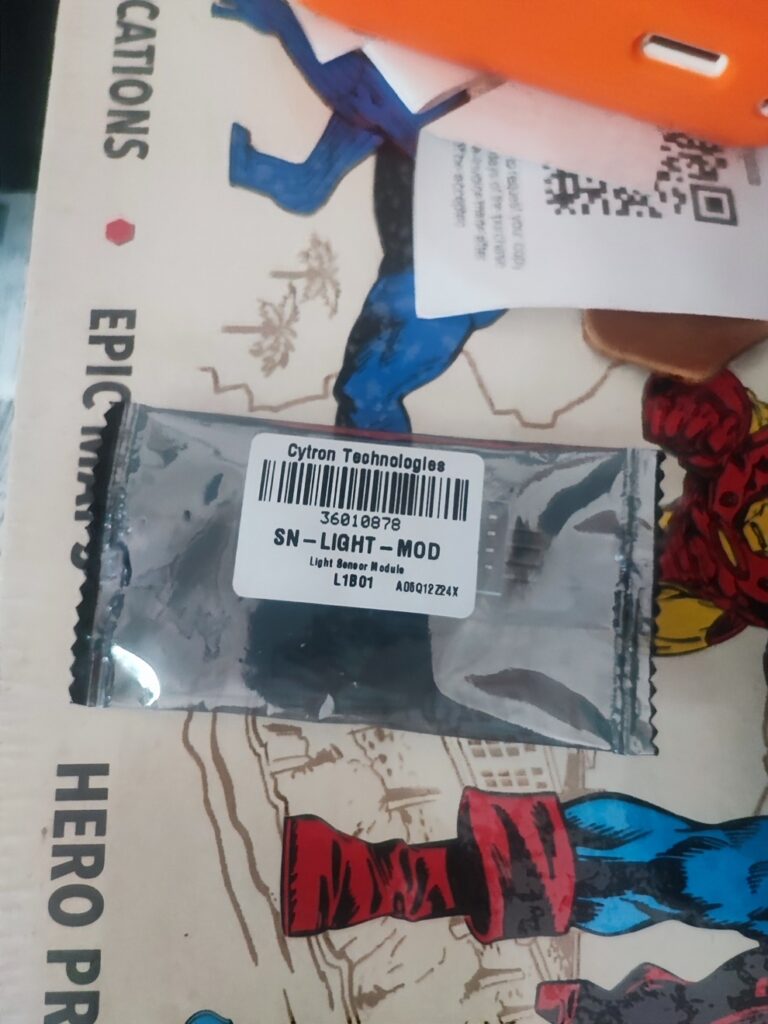
From the previous project https://chow.karmeng.my/2025/03/28/programming-esp32-wrover-with-dht22-am2302-humidity-and-temperature-sensor/ , I am intent to make use of the light sensor. L1B01 light module to collect data of ambience light.
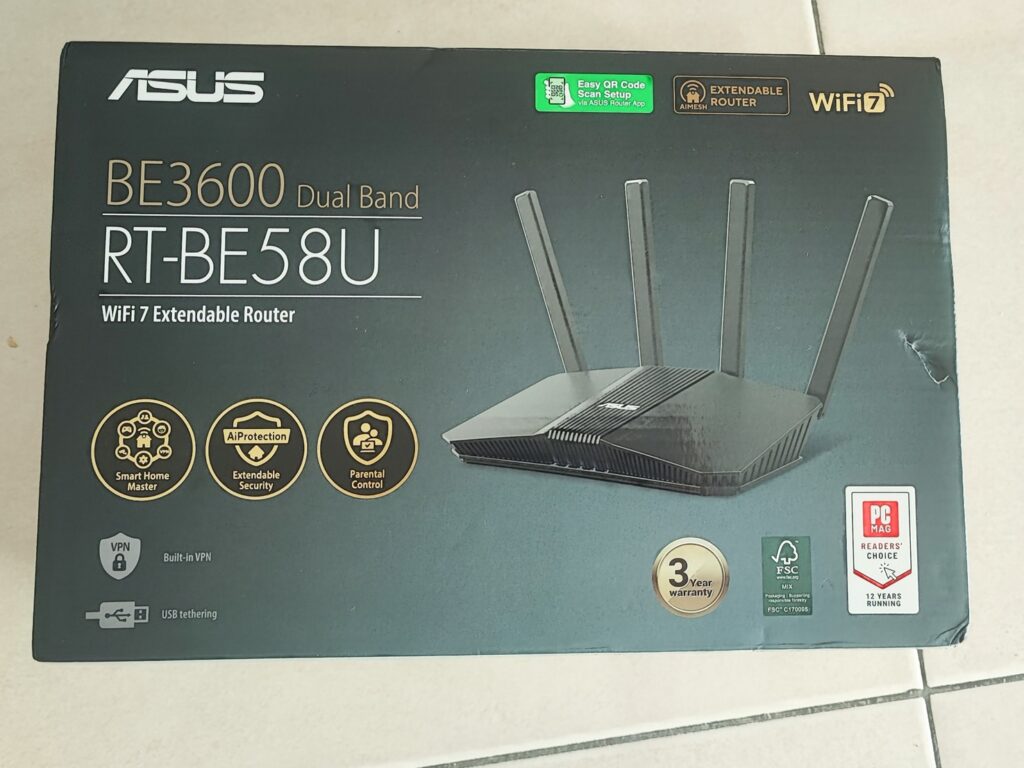
Upgrading WiFi is straight forward, what needed are the usual ISP PPPoE username and password.
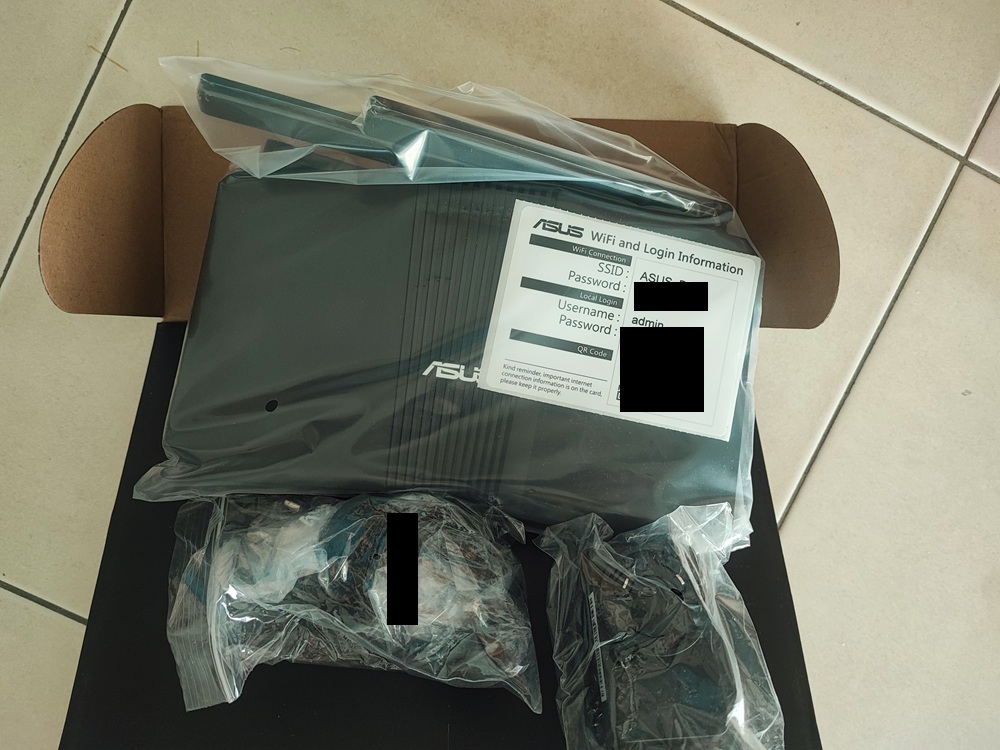
Out of the box, the ASUS BE3600 RT-BE58U contains factory generated password.
For the TLDR Get start . Ventoy
Select and install your preferred version, either windows or linux
Run the program after unzip
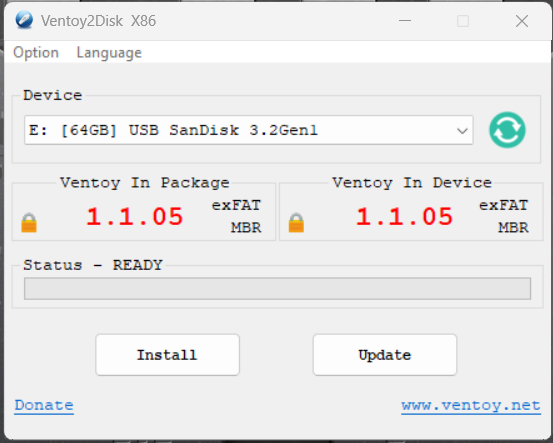
Click on Install button to install Ventoy into your USB drive.
Once it is done, open the Computer Management to verify Ventoy installation.
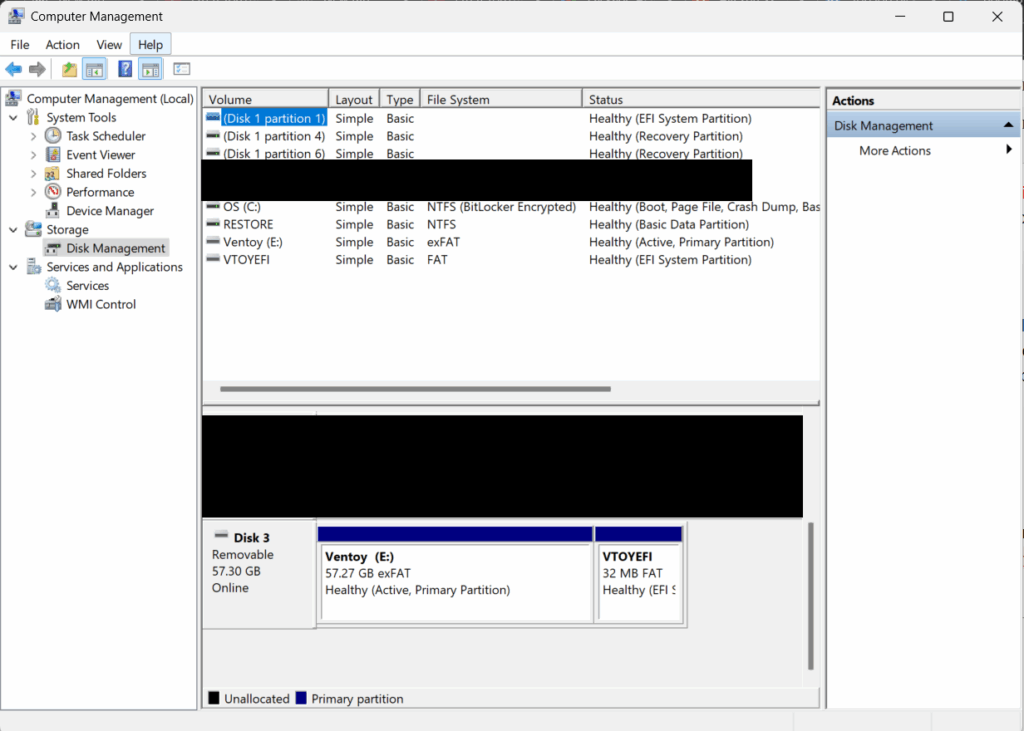
Upon install a partition VTOYEFI will be a 32MB partition in your USB drive.
Next place all your intended ISO into the counterpart partition.
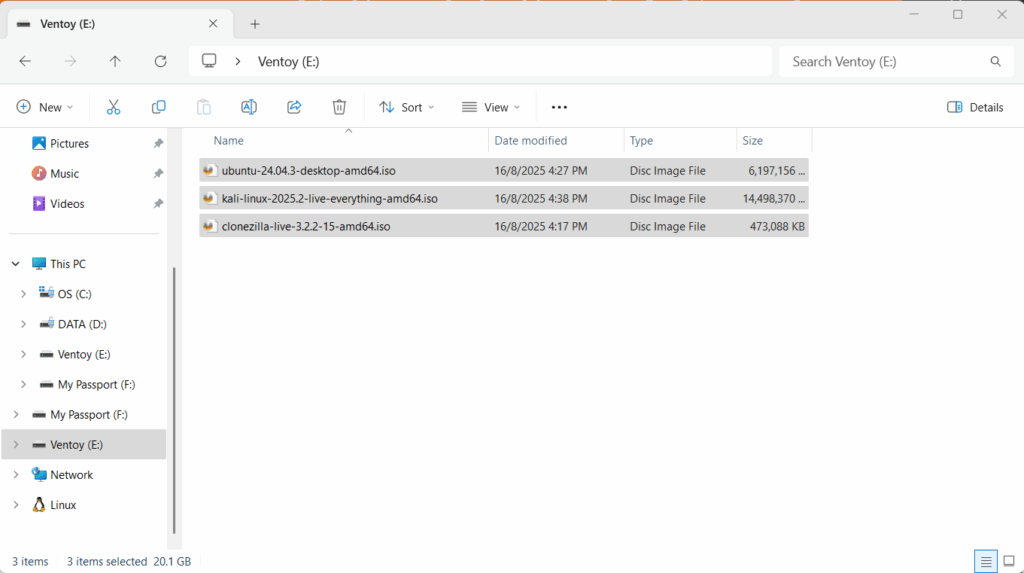
You can now boot a computer using Ventoy.
Based on Wazuh official documentation Wazuh Docker deployment – Deployment on Docker · Wazuh documentation
TLDR; just need to have docker engine installed on your favorite OS.
The next thing to do is to ensure your OS has a git client and run the following to clone Wazuh into your machine
git clone https://github.com/wazuh/wazuh-docker.git -b v4.12.0Next, generate the certificates that are needed by Wazuh to work. Make sure to decide to run on a single node or multinode indexer Wazuh. Go to the appropriate directory from the cloned Wazuh git repo. Then run
sudo docker-compose -f generate-indexer-certs.yml run --rm generator
If you are using the newer version aka Version 2 docker compose run the following instead
sudo docker compose -f generate-indexer-certs.yml run --rm generator
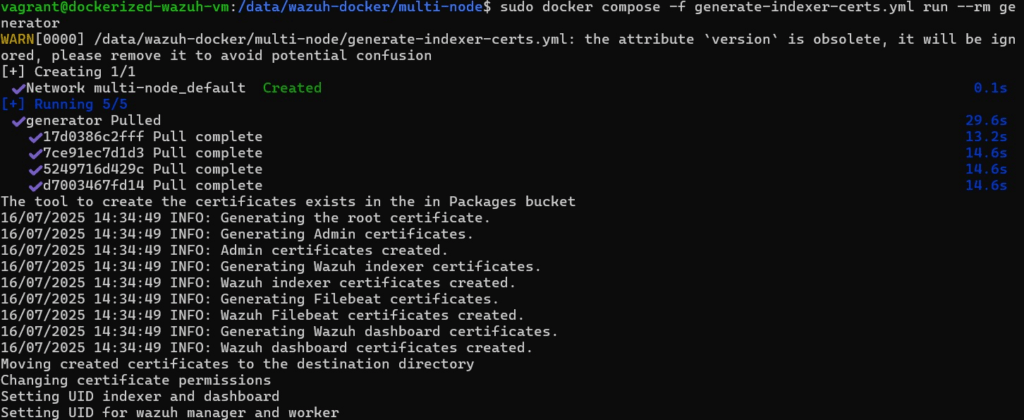
Once the certificate is installed, go to the correct directory then run the following:
sudo docker-compose up -d
Again, should version 2 of docker compose is used run the following instead
sudo docker compose up -d
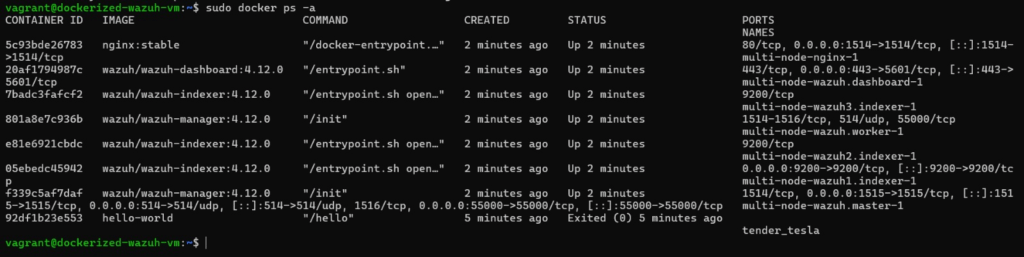
If everything is good you will be able to browse to your Wazuh dashboard in a minute or 2.
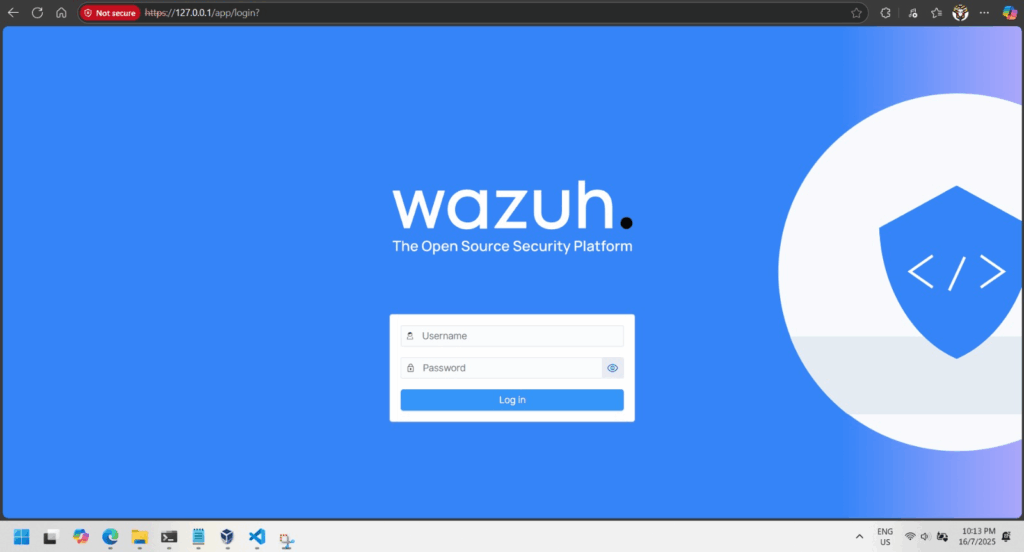
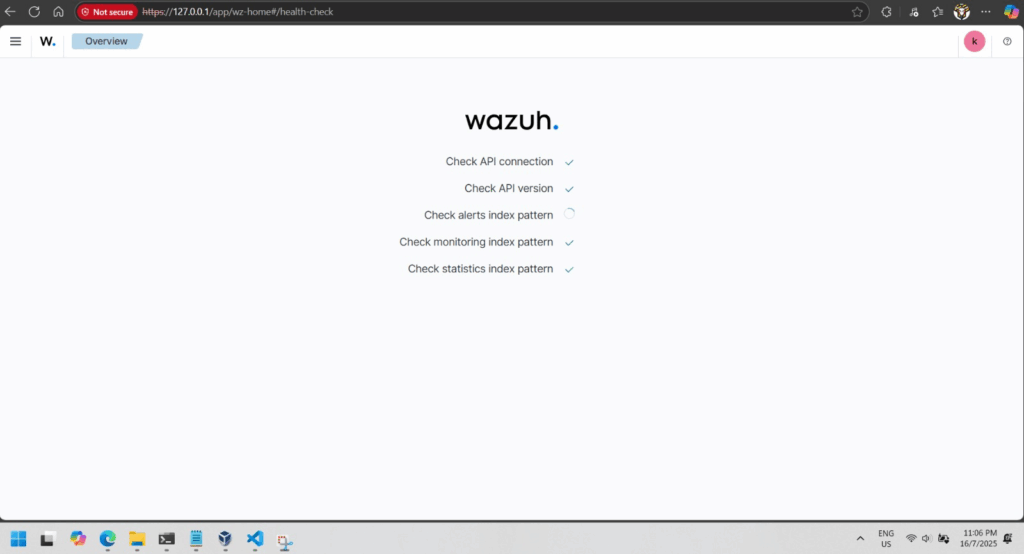
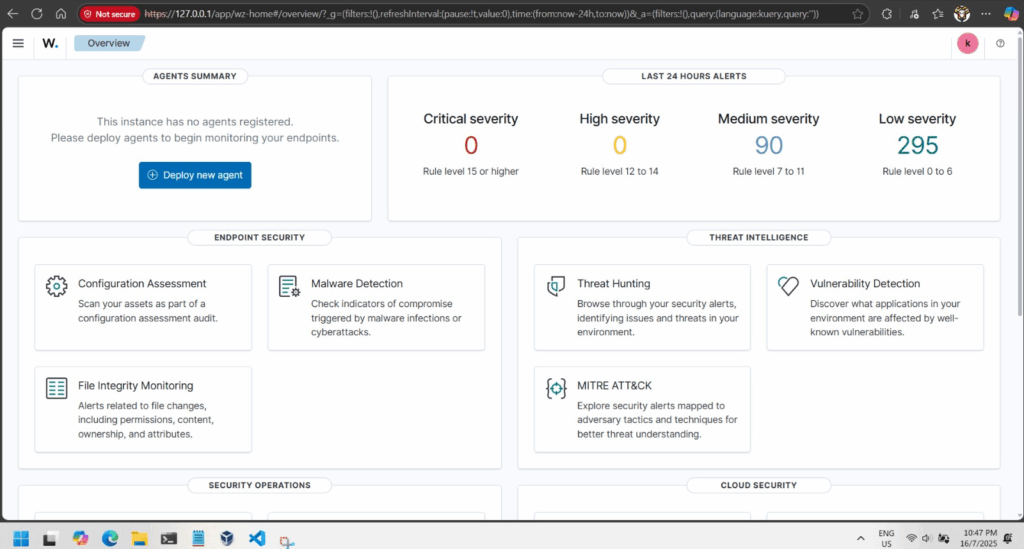
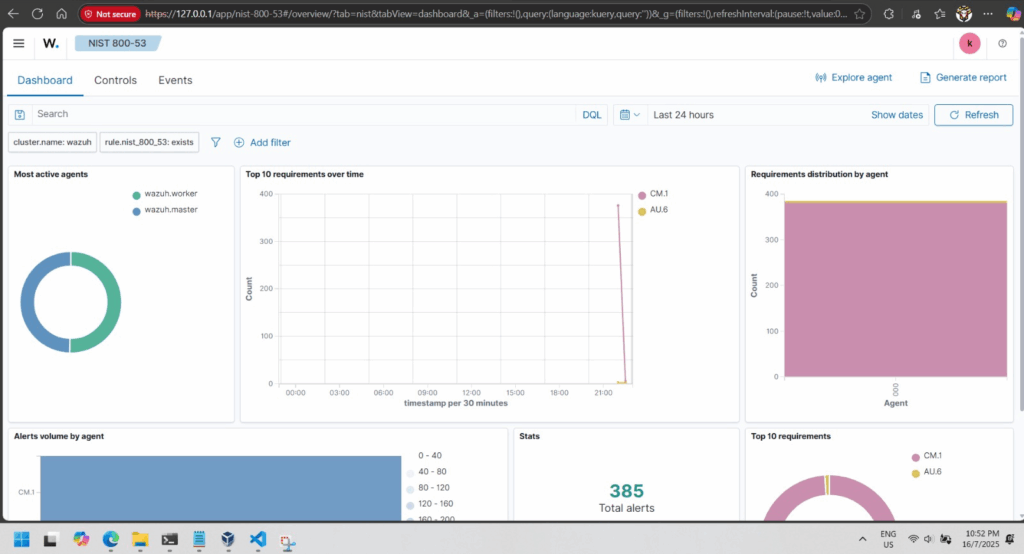
Wazuh SIEM (Security Information and Event Management) platform can help protect systems.
Wazuh SIEM Solution
Wazuh is a free, open-source tool that monitors systems, detects attacks, and logs security events.
It consists of:
Simulated Attacks & Findings
Security Recommendations
Conclusion
Wazuh helps organizations detect, analyze, and respond to cyber threats before they cause harm. By implementing strong security measures, users can protect their systems from the dangers of the “Wild Web.”
Final Thought: Cybersecurity is essential—tools like Wazuh make it easier to stay safe online!