The reference is straight forward; however, it is not for the esp32-wrover.
Based on the from the reference, using educated guess without reading the specification, it is a hindsight that the original wiring will not work.
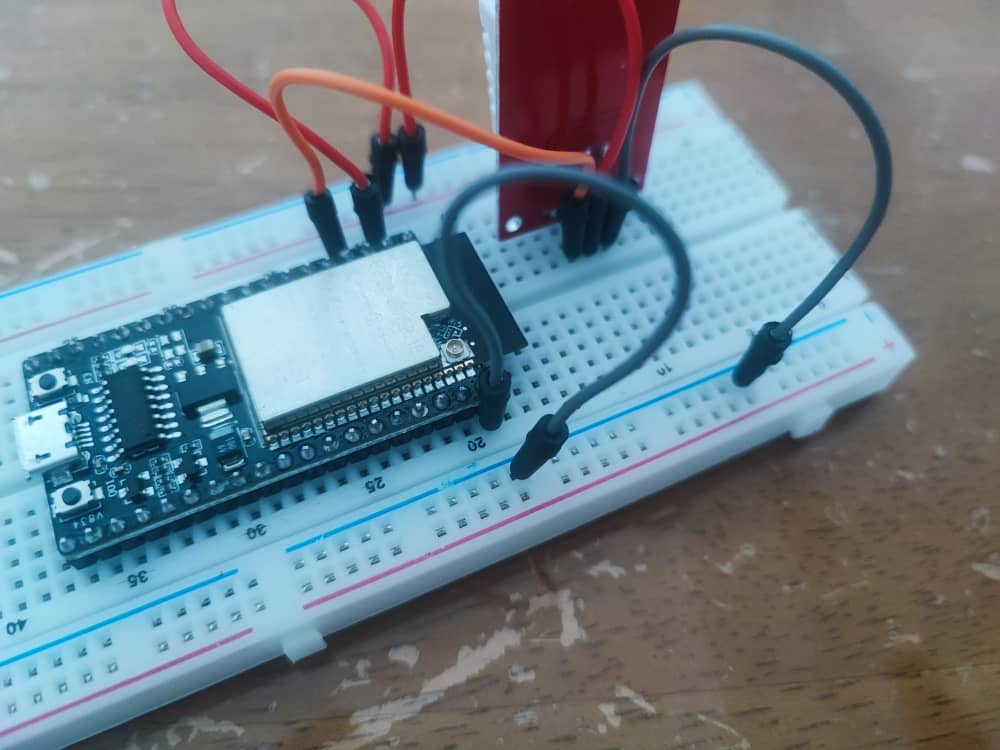
Original wiring on the breadboard for the ESP32-wrover, spoiler this is wrong for many reasons
It didn’t work, was getting the error “Failed to read from DHT sensor!” from the sample code.
DHTPIN were used is 4, which I had wrongly assumed it to be the physical pin number. Little did I know that, the reference is referring to GPIO4 instead of the physical pin number.
Based on the reference, ESP32-wrover spec sheet page 9, the physical pin 4 is the SENSOR_VP.
The hardest part is to determine what are the connector chip and installing libraries into Arduino IDE. Refer to the shared link in the beginning of this post.
Code from DeepSeek for a complicated hello world, assuming to make the LED blinks in morse code:
#include <Arduino.h>

#define LED_PIN 2  // Built-in LED on GPIO 2

// Morse code representations for A-Z
const char* morseCodes[] = {
  ".-",    // A
  "-...",  // B
  "-.-.",  // C
  "-..",   // D
  ".",     // E
  "..-.",  // F
  "--.",   // G
  "....",  // H
  "..",    // I
  ".---",  // J
  "-.-",   // K
  ".-..",  // L
  "--",    // M
  "-.",    // N
  "---",   // O
  ".--.",  // P
  "--.-",  // Q
  ".-.",   // R
  "...",   // S
  "-",     // T
  "..-",   // U
  "...-",  // V
  ".--",   // W
  "-..-",  // X
  "-.--",  // Y
  "--.."   // Z
};

void setup() {
  pinMode(LED_PIN, OUTPUT);  // Set the LED pin as an output
  Serial.begin(115200);
}

void loop() {
  String message = "SOS";  // Message to transmit in Morse code
  message.toUpperCase();   // Convert message to uppercase

  // Transmit the message in Morse code
  for (int i = 0; i < message.length(); i++) {
    char currentChar = message[i];
    if (currentChar >= 'A' && currentChar <= 'Z') {
      transmitMorse(morseCodes[currentChar - 'A']);  // Transmit Morse code for the character
    } else if (currentChar == ' ') {
      delay(1400);  // Gap between words (7 units)
    }
    delay(600);  // Gap between letters (3 units)
  }

  delay(2000);  // Wait before repeating the message
}

// Function to transmit a Morse code pattern
void transmitMorse(const char* morseCode) {
  for (int i = 0; i < strlen(morseCode); i++) {
    if (morseCode[i] == '.') {
      blinkDot();  // Transmit a dot
    } else if (morseCode[i] == '-') {
      blinkDash();  // Transmit a dash
    }
    delay(200);  // Gap between dots/dashes (1 unit)
  }
}

// Function to blink a dot (short flash)
void blinkDot() {
  digitalWrite(LED_PIN, HIGH);  // Turn the LED on
  delay(200);                   // Dot duration (1 unit)
  digitalWrite(LED_PIN, LOW);   // Turn the LED off
}

// Function to blink a dash (long flash)
void blinkDash() {
  digitalWrite(LED_PIN, HIGH);  // Turn the LED on
  delay(600);                   // Dash duration (3 units)
  digitalWrite(LED_PIN, LOW);   // Turn the LED off
}
Code to connect to WiFi:
#include <WiFi.h>

// Replace with your network credentials
const char* ssid = "myhome4iot";
const char* password = "i have the longest wifi password ever";

void setup() {
  Serial.begin(115200);

  // Connect to Wi-Fi
  WiFi.begin(ssid, password);
  Serial.println("Connecting to Wi-Fi...");

  // Wait for connection
  while (WiFi.status() != WL_CONNECTED) {
    delay(1000);
    Serial.print(".");
  }

  // Connection successful
  Serial.println("\nWi-Fi connected!");

  // Get and print network information
  IPAddress ip = WiFi.localIP();
  IPAddress gateway = WiFi.gatewayIP();
  IPAddress dns = WiFi.dnsIP();

  Serial.println("Network Information:");
  Serial.print("IP Address: ");
  Serial.println(ip);
  Serial.print("Gateway: ");
  Serial.println(gateway);
  Serial.print("DNS Server: ");
  Serial.println(dns);
}

void loop() {
  // Nothing to do here
}
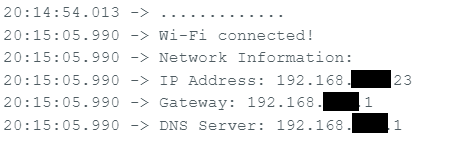
Returning IP information of ESP32
Code to scan WiFi:
#include <WiFi.h>

void setup() {
  Serial.begin(115200);

  // Set ESP32 to station mode
  WiFi.mode(WIFI_STA);
  WiFi.disconnect();  // Disconnect from any previous connection
  delay(100);

  Serial.println("Starting Wi-Fi scan...");
}

void loop() {
  // Scan for nearby Wi-Fi networks
  int numNetworks = WiFi.scanNetworks();

  if (numNetworks == 0) {
    Serial.println("No networks found.");
  } else {
    Serial.print(numNetworks);
    Serial.println(" networks found:");
    for (int i = 0; i < numNetworks; i++) {
      // Print SSID and RSSI for each network
      Serial.print(i + 1);
      Serial.print(": ");
      Serial.print(WiFi.SSID(i));  // SSID
      Serial.print(" (");
      Serial.print(WiFi.RSSI(i));  // Signal strength (RSSI)
      Serial.print(" dBm)");
      Serial.print(" [");
      Serial.print(getEncryptionType(WiFi.encryptionType(i)));  // Encryption type
      Serial.println("]");
    }
  }

  Serial.println("-----------------------------");
  delay(10000);  // Wait 10 seconds before scanning again
}

// Function to convert encryption type to a human-readable string
String getEncryptionType(wifi_auth_mode_t encryptionType) {
  switch (encryptionType) {
    case WIFI_AUTH_OPEN:
      return "Open";
    case WIFI_AUTH_WEP:
      return "WEP";
    case WIFI_AUTH_WPA_PSK:
      return "WPA";
    case WIFI_AUTH_WPA2_PSK:
      return "WPA2";
    case WIFI_AUTH_WPA_WPA2_PSK:
      return "WPA/WPA2";
    case WIFI_AUTH_WPA2_ENTERPRISE:
      return "WPA2 Enterprise";
    case WIFI_AUTH_WPA3_PSK:
      return "WPA3";
    case WIFI_AUTH_WPA2_WPA3_PSK:
      return "WPA2/WPA3";
    default:
      return "Unknown";
  }
}
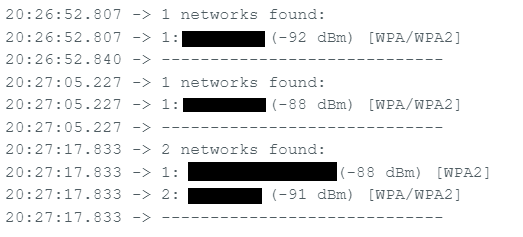
Unfortunately, due to the ESP32-WROVER hardware limitation, any modern 5GHz WiFi will not be able to be scanned or detected. On top of that, the stock ESP32-WROVER-IE needs to have a actual wifi cable to extend its range.
WiFi range is too short to scan a large area as well as limitation of WiFi hardware/chip
After forcing the Jetson OS (based on the ubuntu 18.04) to have Python 3.8 running. After having the JetPack 4.6.3 installed in the Jetson Nano Jetson OS.
Part number used for the board in the seeed reComputer J1020 connecting to the nVidia Jetson SODIMM module is reComputer J202 – Carrier Board for Jetson Xavier NX/Nano/TX2 NX.
Metadata is a powerful tool for AWS users. It allows users to make query of data describing EC2 instances, and making a self reference API call.
By default any linux AMI will have curl build in, hence using of metadata will be simplified.
One of the best test case is automating input into shell script that will requires a lot of user prompt is automating or at least make configuration of setting up openvpn using AWS Lightsail easier.
!#/bin/bash
sudo chmod 777 ./openvpn-install.sh
sudo ./openvpn-install.sh << INPUT


y
1
1
11
n
n

client
1

INPUT
sudo cp /root/client.ovpn /home/ubuntu
sudo chmod 777 /home/ubuntu/client.ovpn
Above shell script will cause the openvpn-install.sh to fail in AWS, as the script does not provide public and local ip of the instance.
Below script are including the AWS Metadata
!#/bin/bash
TOKEN=`curl -X PUT "http://169.254.169.254/latest/api/token" -H "X-aws-ec2-metadata-token-ttl-seconds: 21600"`
PUBLICIP=`curl -X GET "http://169.254.169.254/latest/meta-data/public-ipv4" -H "X-aws-ec2-metadata-token: $TOKEN"`
LOCALIP=`curl -X GET "http://169.254.169.254/latest/meta-data/local-ipv4" -H "X-aws-ec2-metadata-token: $TOKEN"`
sudo chmod 777 ./openvpn-install.sh
sudo ./openvpn-install.sh << INPUT
$LOCALIP
$PUBLICIP
y
1
1
11
n
n

client
1

INPUT
sudo cp /root/client.ovpn /home/ubuntu
sudo chmod 777 /home/ubuntu/client.ovpn
By adding the metadata the ovpn file will be populated with correct IP.
AWS Metadata allow automation to be made simpler by running scripts that requires self-reference metadata to configure newly booted up EC2 instance(s).